|
|
|
|
|
|
|
|
|
|
|
|||||||||||||||
 |
|||||||||||||||||||||||||
 |
|||||||||||||||||||||||||
|
|||||||||||||||||||||||||
This section allows customer information to be stored in the system and used to maintain all information and track all activity about your customers. BizPie also allows "John/Jane Doe" type of customers to rent tapes. Since these types of customer are not in the computer, you do not have to provide anything special for them in this chapter. NOTE: "John/Jane Doe" type of customers will not be allowed to process rental returns through the "Bulk Return" section of BizPie. This customer types are designated as "DR" type customers. (See "Enter/Modify Lookup Tables" section under "Customer Plans").
8.1.1 Enter/Modify Customer Information Entering data in the customer information section follows the same procedures as entering information in the "Enter/Modify Rental Items" or "Enter/Modify Merchandise Items" sections. Fields with an (*) are required fields and must be filled in. Other fields are optional but it is suggested that you take the time to fill them in. If this is a change to an existing customer's information, enter his customer number and then press Enter. The existing data about the customer will now be displayed. Use the Enter and arrow keys to find the fields that are to be changed and type over the old information with any new information. Use the "PgUp" (page up) and "PgDn" (page down) keys to change pages of the screen. When all information is correct, press F9 to save it. If this is a new customer, you must assign a new customer ID. Move the highlighted field to the customer number area with the arrow keys or the Enter key. To find the last customer ID used, press FIO function key. Type in the new customer ID and the customer data and use the Enter key to move you from field to field. When you complete entering the data on Screen 1, press the "PgDn" (page down) key to move to Screen 2. Fill in the second screen the same way as you filled in the first screen. When you have entered all the data for both screens, check to see that it is correct. You may return to the first screen by using the "PgUp" (page up) key. If you discover an error, use the Enter key or the arrow keys to move to the field with the error and type over the error. Once both screens are correct, press the F9 key to save the information.
8.1.2 "John/Jane Doe" customers If customers do not want to give their name you can still rent to them if you choose to. BizPie assigns the rental receipt number as a temporary customer ID for that customer. This ID is in effect only for the current transaction. The next time this customer comes in to rent tapes, he will be assigned the current receipt number as his temporary ID. The system automatically treats this customer as a "DR" (Deposit Required) type customer. This type of customer may be prevented from renting tapes by setting up the appropriate choices "Enter/Modify Store Information" section.
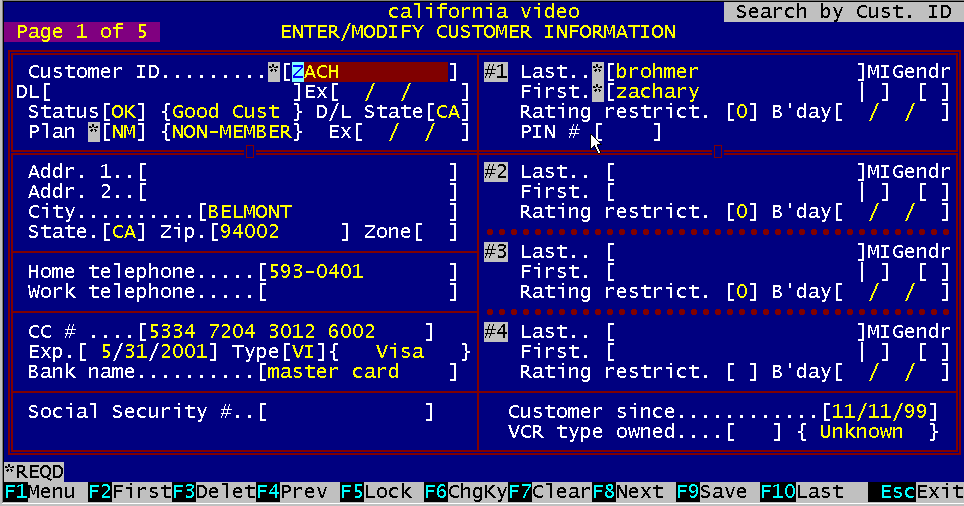
Figure 8.1 Screen Page 1 of 5
Assign a unique customer ID. If you enter an ID that is already in the system, the existing customer will be displayed. If there is no customer for that ID, the "New Record" indicator is displayed on the top left side of the screen, and a beep is sounded. If you don't want to create a new customer, display the next customer in the file by pressing one of the function keys or Esc (escape) key. If you are using a barcode reader, you should preprint the customer ID labels and use these preprinted ID's for new customers as they are entered into the system.
8.2.2 Driver's License Number. Enter the customer's drivers license. This field is 20 characters long and you may use any combination of letters or numbers. You may enter another form of ID in this field, not just the license number. An example is if you are using the social security number as an ID. This ID must be unique for every customer. If you enter an ID that already exists in the system, BizPie will place a message on the bottom of the screen and sound the beep. The message will say that this customer already exists with this ID as customer number XXXX. This usually means that this customer is attempting to sign up again as a new customer using a different ID because they know they owe you money under the old ID. BizPie will not allow you to save a new customer that has a duplicate driver's license ID. Each ID must be different. If you are using the optional Driver's License magnetic stripe reader, make sure it's enabled in the "Management Menu", "Station Setup", Page 2 of 2. To use it you should press the Enter key (ID field should be blank). A popup window will ask you to swipe the driver's license. This will fill in all the information from the license to the screen. You can still make any changes you want as usual.
8.2.3 Driver's License Expiration Date Expiration date of the driver's license. BizPie will warn you at the POS screen when the driver's license has expired.
The customer status codes are created in the "Enter/Modify Lookup Tables" section, "Customer Status" part. Use the codes that you have set up which best describes the customer's current status. Examples are "BC°; (bounces checks), "NR" (never rent), etc. You can scroll through and display the different codes by pressing function key F4 or F8. If you assign a status of "DR" (Deposit Required), BizPie will automatically ask for a deposit for each rental item the customer rents on the POS screen. This deposit is the amount you setup for each individual item in the "Enter/Modify Rental Item" section of BizPie. When the items are returned, the deposits will be refunded to the customer.
Enter the customer plan type code from the list of codes defined in "Enter/Modify Lookup Table" section, "Customer Plan" part. You can scroll through and display the different codes by pressing function key F4 or F8. "Customer Plan Type" code in combination with the "Rental Price" code is used to determine the prices for rental items at the POS screen, as setup in the "Enter/Modify Lookup Table" section, "Rental Prices" part, based on rental item/customer type combination. "Customer Plan Type code is also used in "Management Menu" section, "Weekly Discount Schedule" part to setup pricing in effect for a particular day of the week, based on "Customer Plan Type" and "Rental Item Pricing" combination. There is one fixed "Customer Plan Type" that is not changeable. The "DR" (Deposit Required) type is for customers who are not on file. This customer type will be charged a deposit for rental items as setup for "DR" type customers in the "Enter/Modify Lookup Table" section, "Rental Prices" part. The "DR" type of customer is always required to leave a deposit for each rental item on the POS screen. The amount of the deposit required is setup in the "Enter/Modify Rental Item" section screen 1 of 4, "Rental Deposit" field. If this field is left blank ($0.00), there will be no deposit required for that rental item, even if a DR type customer rents the tape. "Customer Plan Type is used in the setup of "Rental Prices" section of the "Lookup Tables". The customer type determines which of the rental price tables are applied to the customer during POS transactions.
Enter the customer's last name as it appears on his identification.
Enter the customer's first name as it appears on his identification.
8.2.8 Customer's Middle Initial Enter the customer's middle initial as it appears on his identification.
Enter the customer's gender, either M for male or F for female. This information will be used in reports.
The PIN number is used by the ThroughTheWall Video Tape Dispensing machine. Every customer must have a PIN number assigne to be able to rent tapes from this VDM.
Enter the birthday for this customer. This birthday is used to check if there is a rating restriction that applies to this family member at the POS screen when they rent a movie.
Enter the customer's street number and address as it appears on his identification.
This is additional space for special address features such as apartment # or P.O. Box numbers, etc.
8.2.14 City, State and Zip code Enter the name of the city, state and zip code as it appears on the customer's identification.
This field is used as a free from field. It can be used to assign a geographical area to a customer for use in the report selection criteria.
Enter the customer's home telephone number. Whenever this customer is selected on the POS screen, this telephone number will appear beside the name to be used as one method of verification.
Enter the customer's work telephone number.
Fill in the credit card number as it appears on the customer's credit card. If you are using the optional Driver's License magnetic stripe reader, make sure it's enabled in the "Management Menu", "Station Setup", Page 2 of 2. To use it you should press the Enter key (Number field should be blank). A popup window will ask you to swipe the credit card. This will fill in all the information from the credit card to the screen. You can still make any changes you want as usual.
8.2.19 Credit Card Expiration Date Enter the month and year as two digit numbers to indicate the date that the credit card expires. If the credit card is expired, there will be a warning message at the POS screen. If you are using the magnetic stripe reader, the expiration date will be automatically filled in from the credit card
Credit card type will be automatically selected based on the credit cards' first digit. You must have the credit card types already setup in the Lookup Tables. You must select from the list of table codes for credit cards. You can press function keys F4 or F8 to scroll through the available credit card types.
The customer's social security number.
This field is used to "MARK" this customer to be exported to another store. Using the "Import/Export" section of BizPie customer information can be moved from one store location to another if you have multiple stores.
8.2.23 Customer Plan Type Expiration Date Date of expiration for this customer's plan. This date is displayed and used in the POS screen to alert you to an expired membership. When you add a new customer to the system, BizPie automatically calculates the expiration date of the membership plan based on the information you provide when you set. up these membership plans in the "Enter/Modify Lookup Tables" section. If you want this membership plan expiration date to be different than the default date provided, just overtype it with the date you want. NOTE: expiration date is automatically created only the first time you enter a customer!
Enter the date that the customer joined as a member. This date is automatically filled in for today's date when you add a new customer. If you want this date to be different than the default date provided, you just overtype it with another date you want.
When a customer rents a tape, BizPie checks to see if the format of the tape matches that of the VCR you have entered here. If its different, a message will appear on the bottom of the screen alerting the clerk that a different format tape is being rented than the customer's VCR.
8.2.26 Second, Third and Fourth Names Enter the names of any other family members that are authorized to use this membership. BizPie allows you to select any one of these family members on the POS screen as the one who rents a tape. This information is recorded with the transaction.
8.2.27 Rating Restriction Level
Each family member may be assigned a "Rating Restriction Lever'. This may be used to restrict any family member from renting certain tapes, game cartridges, etc. The following describes the rating levels: The "Rating Restriction Lever' numbers are entered in the "Lookup Table Code"; "Ratings" section. This is where you create the standard MPAA rating codes and any other codes that you like. Each code may be assigned a "Rating Restriction Lever'. Example: "Star Wars" has an MPAA rating of G. You assign a "Rating Restriction Level" of 1. "Friday the Thirteen" has a rating of PG13, and you consider it a violent movie. You assign a "Rating Restriction Level" of 6 to it. A family member, Danny Jr., has level 4. He will not be able to rent "Friday the Thirteen" movie, since you require a level 6 or higher to rent it. When he attempts to do so, the bottom of the POS screen will alert the clerk with the message and the beep will sound. He will be able to rent "Star Wars", since it's a level 1, and Danny Jr. has a level 4, which is higher than 1. Enter the format of the customer's VCR using the list created in "Enter/Modify Lookup Tables" in the Fonnats section.
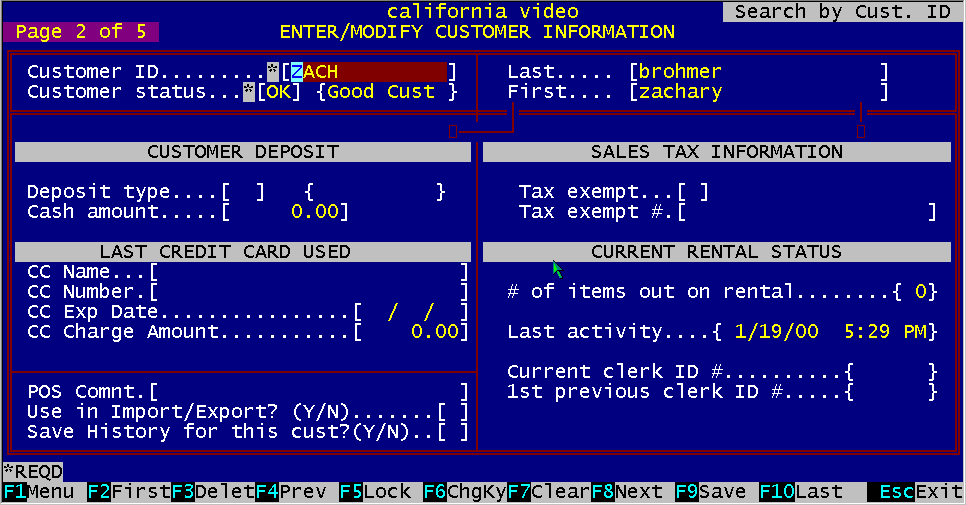
Figure 8.3 Screen Page 2 of 5
If a general deposit is made by the customer (not associated with any rental transaction), you may record it here. This deposit is separate and unrelated to the deposit collected in the POS transaction screen, which will not be added to this deposit (it's a refundable deposit), but will be displayed on this same screen (2 of S) in the "Cash Deposit on Rentals" field. Enter the type of security deposit offered. It must be one of the following:
Enter the amount of the cash deposit in the format $xx.xx. This amount is recorded in the customer's file and displays on the POS screen when this customer's name is shown.
This is a free form field. This memo is displayed on the POS screen whenever this customer is active on the screen.
8.3.4 Comment to Print on Receipt This message will print on the bottom of the customer receipt when there is any kind of transaction which prints a receipt. This message will print ONLY on this customers receipt.
If the customer has a sales tax exempt status, enter "Y" , otherwise enter "N'. If you entered "Y", there will be no sales tax charged for this customer..
8.3.6 Tax Exempt Certificate Number If the customer has a sales tax exempt status, enter the sales tax number and complete the appropriate paperwork for your tax records.
8.3.7 Number of Items Out on Rental This field is updated and displayed by the POS transaction screen. You can change this number in case there is a discrepancy.
Last date and time a customer had a transaction in the store.
8.3.9 Current, 1st and 2nd clerk ID's The last three clerks whom handled this customer.
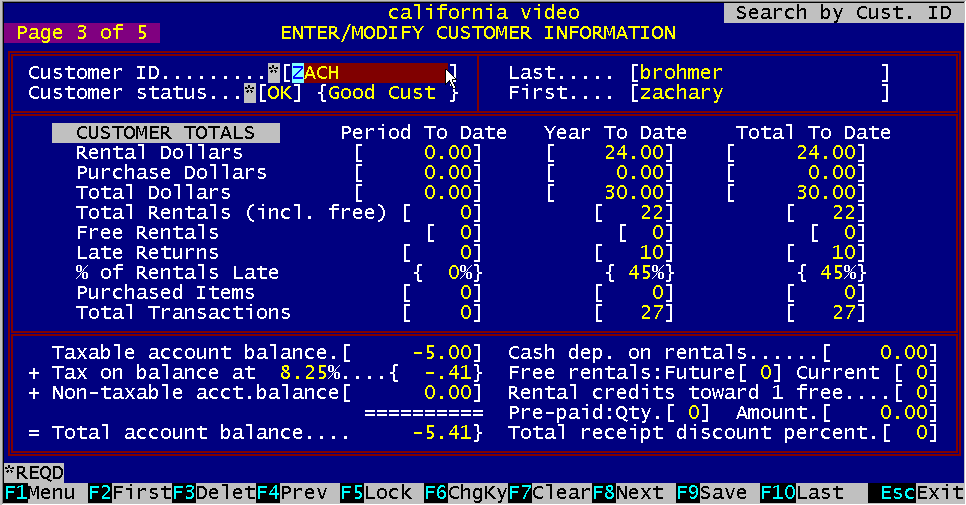
Figure 8.4 Screen Page 3 of 5
This screen displays the financial statistical information about this customer. The Period to Date, Year to Date, and Total to Date numbers for the dollars spent and the transactions completed are displayed. All of these fields are enterable, so you can place the beginning balances (if any) into them.
Taxable dollar amounts this customer has on account. This amount can be derived from late charges (negative amount), excess payments or credits (positive amount). This field can be changed by overtyping it. Whenever there is a payment made by the customer (if this is a negative number), the correct sales tax will be added on.
This number is the total sales tax to be paid by the customer when the taxable account balance is paid up.
8.4.4 Nontaxable Account Balance Nontaxable dollar amounts this customer has on account. This amount can be derived from late charges (negative amount), excess payments or credits (positive amount). This field can be changed by overtyping it. Whenever there is a payment made by the customer (if this is a negative number), there will not be any sales tax added on to the total.
Displays the Total amount of money this customer has on account. A negative amount indicates money is owed to you, a positive amount indicates that you owe the customer.
Amount of cash deposit this customer has give to you (if applicable) for the currently rented tapes. You can change this number by overtyping it.
8.4.7 Free Rentals Accumulated: Future This fields displays all the available free rentals that are accumulated for this customer. They can be accumulated either through a prepaid rental credit, or a free rental credit after renting a certain amount of tapes. This amount is derived from the "Customer Plan Type" lookup table. Example: You allow customers 12 free tapes a year, but they can only use one a month. The 12 free tapes will be displayed here, to be used in the future. Every time you process the end of month routines, this number will add to the current count one free tape credit, and remove one from the future count. At the end of month processing, you will be asked to clear unused free rentals. It is referring to these free rentals.
This value displays the currently available free rentals that may be used this month. This number is the sum of the following: one free tape per month allocation (Example: Joining membership) pre paid rental (all pre paid rentals can be used now) rent a certain number of tapes, get one (or more) free
8.4.9 Rental Credits Towards 1 Free The number of rental tapes previously rented that apply towards one free rental tape. You may change this number by overtyping it.
The prepaid rental units this customer has in the account. The prepaid rentals are purchased as a merchandise item. (See:Enter/Modify Merchandise). This number is decremented every time this customer uses up a prepaid rental to either rent or to pay for a late fee.
The prepaid rental value this customer has in the account. This value is determined by the amount of the prepaid dollars that were purchased (See: Enter/Modify Merchandise). For every rental item that is rented by the customer, the prepaid dollar amount is reduced in the account and the rental item is credited with this dollar amount as rental revenue.
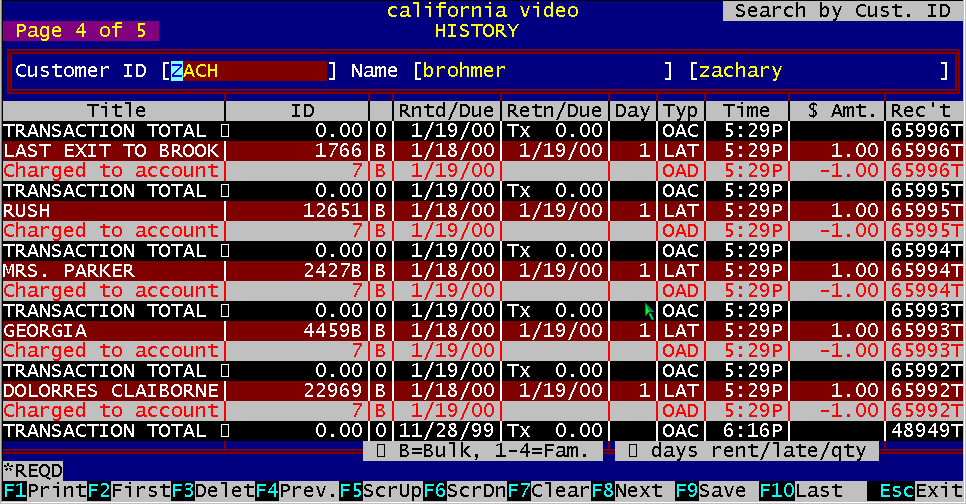
Figure 8.5 – Screen Page 4 of 5
This screen displays all the activity of a customer, which is a duplicate of each receipt line. It includes the item name and ID, the family member number (B = Bulk Return), the dates of rental, return and late, the number of days out or late, the line type, the line dollar amount and the receipt number. The system maintains an activity log for all line items of a customer transaction. You can scroll through the log file by pressing Function Key FS and F6 since only sixteen lines are displayed at one time. You can limit the activity log retention by number of months to keep the data in the "Enter/Mock; fy Store Information" section of BizPie. The tapes listed in this activity log file are also used in the POS section. If a customer tries to rent a tape that has been previously rented, a beep will sound and a message will display on the 24th line saying: "This customer has rented STAR WARS on 12/12/86" Pressing function key F1 will print all the items in the ActivityLog file.
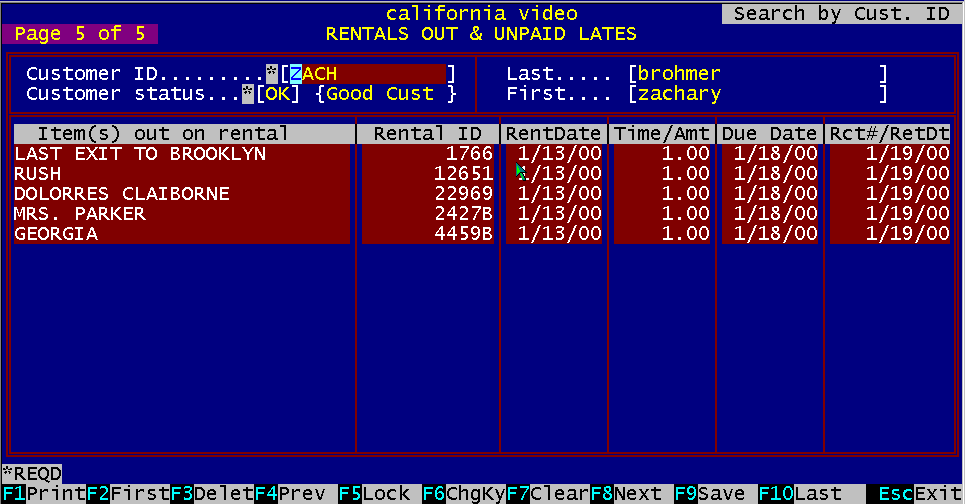
Figure 8.6 Screen Page 5 of 5
This screen displays all of the tapes that are currently out on rental for a customer. The tape main title, tape ID number, date rented, date and time due back and the late return date are displayed. If the customer returns a tape late, and there is a late fee owed but not collected, the rental item returned late and not paid for will remain on this screen. Example: All five movies were returned late and the late fee was not paid. The amount of the late fee is $1.00 for each movie. If the customer pays the late fee in the future and brings his account balance to zero, the late rental items will be removed from this screen. |
|||||||||||||||||||||||||
|
|||||||||||||||||||||||||
|
|||||||||||||||||||||||||
|
|||||||||||||||||||||||||
| [BizPie] [About Us] [Sales Information] [Service] [What's New] [SiteMap] | |||||||||||||||||||||||||
Please contact our Webmaster with questions or comments. |
|||||||||||||||||||||||||