|
|
|
|
|
|
|
|
|
|
|
|||||||||||||||
 |
|||||||||||||||||||||||||
 |
|||||||||||||||||||||||||
|
|||||||||||||||||||||||||
This chapter is about Managment and configuration of sales print outs. This would give you control of sales reports and print outs.
Figure 16.1 End Of Day Stations
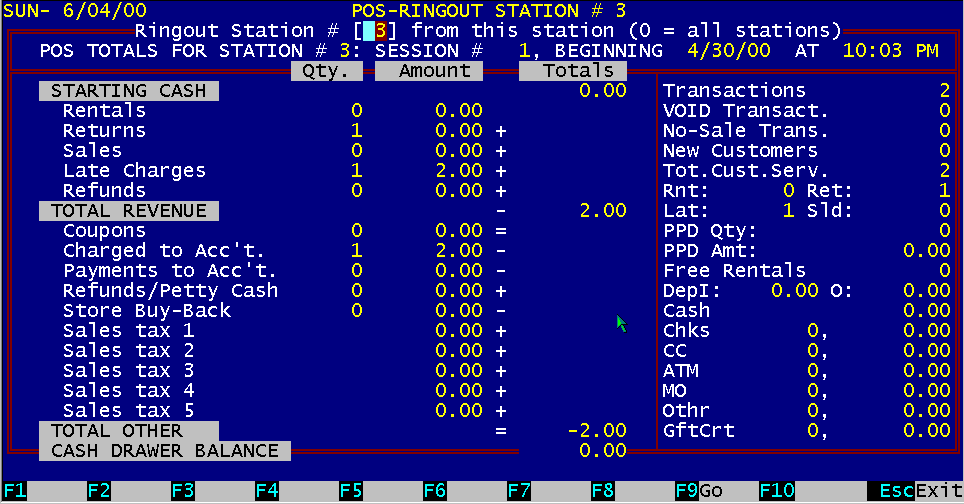
End of day processing is composed of two main functions. First is the cash-drawer ring-out from each station, the second is the storewide ring-out. The individual station cash-drawer ring-out is performed directly from the POS screen. While you are in the POS screen, pressing the ALT key and F9 key (ALT F9) combination together will display the cash-drawer status for that station. This screen is a summary of the individual station's activity since the last time this station was cleared. The bottom right side of the screen displays the dollar amount totals for cash, checks and credit card vouchers that should be in the drawer. Any deviation from the amount displayed (over/under) indicates a discrepancy. Each station will display all the activity on the indicated station number since the last time it was cleared. There is a session number displayed on the screen and printed on the reports. This session number is an individual number for each workstation and is automatically incremented every time you clear the workstation. The purpose of this session number is to prevent an employee from ringing out a station and starting a new session without your knowledge. An example would be if an employee gives you session number 231 yesterday and 233 today, you know they have cleared the station total for session number 232 and not given you the money and the report for that session. If you have multiple stations, you can ring out all stations from any of the stations This may be necessary since only one station may have a report printer attached to it. If you want to ring-out station other than the one you are on, you must exit BizPie on the other station first. You just enter the station number you want to ring out, on the current station, and press Function Key F9 (Go) to start the ring-out process. When its completed, you can type in another stations number to ring-out. If you want to automatically ring-out all the stations, just enter a "0" (zero) for the station number. This will tell BizPie to ring-out all available stations on the system starting with the highest number. Make sure the last station number to ring-out is the one you are on, since you will be asked to enter the beginning amount of cash-drawer money for the next session. The ring-out report will show you the same data as displayed on the screen. In addition, it will give you a worksheet for recording the paper and coin counts. You can add the totals in the drawer and compare with the totals on the report, then record the discrepancy if over or under. The next page printed after the cash-drawer status report will be the sales category report for rentals, late fees and sales.
16.2.1 Ring-out Station [#1] From This Station You can print reports and clear the indicated stations' totals. The default station number is the current station. To clear any other stations' totals, just enter the station number into this field. If you just want to see another station's total without clearing it, you can do so. To clear another stations total, that station must be out of the BizPie program. Then you just enter that station's number and press enter. All the totals for that station will appear on this screen.
The purpose of "Session Number" is to track the clearing of each station's totals, so someone can't clear the station and start a new session without your knowledge. This number is automatically incremented every time you clear the station totals, and appears on each station's reports. Each station can have a different session number, depending on how many times it has been cleared.
This dollar amount is the beginning amount you normally place in the cash-drawer to start the day.
The amount and dollar value of all rental items that were rented out. If the customer had placed the transaction amount on account, the rental count and revenue is still recorded.
The quantity of rental returns for this session. If there is a negative dollar amount shown, it indicates an "Un-Rent" has taken place.
The quantity of and dollar value of all sold items are indicated. This includes rental items that are sold out of the rental inventory. If you see a negative dollar amount, you had more refunds than sales for this session.
The quantity and dollar value of all late charges, if collected or not. If the late charges are placed on the customers' account, it is still recorded here, but the dollar amount will be offset by the "Charges to Account" figure, and the cash-drawer total will be correct.
This quantity indicates refunds of sold rental items or sold merchandise items. The dollar amount is deducted from the total revenue.
The mathematical sum of Rentals, Returns, Sales, Late Charges and Refunds. This figure does not include the "Starting Cash" dollar amount.
The quantity and dollar amount of "Store Coupon or Discount" issued through the use of special POS item number 6. This special item number will reduce the transaction's total sales tax by the amount of this items sales tax value since this item is considered taxable.
This indicates the quantity and dollar amount that was charged to customer's accounts. The cash-drawer totals are reduced by this amount, since there was no money collected for these transaction.
This indicates the quantity and dollar amount that was paid by customers for previously owed money on their accounts. The cash-drawer totals are increased by this amount, since there was money collected from these transaction.
The quantity and dollar amount of "Refunds or Petty Cash Out " issued through the use of special POS item number 9. This special item number does not affect the sales tax accumulation since it has a nontaxable status by default. Thus if a dollar amount was entered for this line item, the transaction amount will decrease but the sales tax due will not be affected, since this line item is considered nontaxable. This line item is basically designed to record money taken out of the cash drawer.
This indicates the total sales tax collected. Sales tax is charges on all items you have indicated to be '"Taxable", for both rental items and merchandise items. NOTE: If the transaction has an amount placed on account, the sales tax for that amount is not placed on the customer's account. Sales tax is charged only for the actual money collected from the customer. If the customer pays only part of the total transaction amount and balances the remainder on the account, BizPie reverse calculates the sales tax portion of the total amount tendered, and records only that amount. Example: The sales tax rate is 5%. The transaction subtotal is $14.00, the sales tax is $0.70, thus the transaction grandtotal will be $14.70. The customer gives you $10.00 as the amount tendered. BizPie reverse calculates the portion of the ten dollars, so the actual amount the customer is paying you is $9.53 for the transaction, plus$0.47 in sales tax, bringing the total to $10.00. BizPie records $0.47 as the actual sales tax collected, and records the actual amount the customer owes you on their account as $4.47 ($9.53 + $4.47 = $10.00). When the customer returns to the store, BizPie displays this previously owed money automatically, and will include it in the current transaction. Since this amount placed on account was taxable, the sales tax of $0.22 will now be calculated on the $4.47 amount and added to the sales tax total of the transaction. This feature is critical for accurate tracking of sales tax collected. Since you have to give the sales tax collected to the state, you should not have to give them money that you have never collected from your customers! Another aspect of this feature is if the sales tax rates change between the time the customer placed this amount on account and the next time they come in to the store to pay the balance owed on account. They obviously will be paying the new sales tax rate, not the rate that was in effect when they placed money on their account.
This is the subtotal of all other debits and credits that affect the total of the cash drawer.
This figure if the actual dollar amount that should be in the cash drawer. This is the mathematical total of "Total Revenue" and "Total Other" and "Starting Cash". This amount, and all the above amounts, are updated after each transaction, in real time. Thus by looking at this screen anytime, you can actually count the cash-drawer total and it should match this figure exactly.
This number indicates the total number of completed transactions during the session.
16.2.18 PrePaid Qty, & PrePaid Value These figures are the prepaid quantity and dollar amount values that were used in this session. These counts and dollar values are not recorded as revenue since the "PrePaid' rental and payment of late fees using "PrePaid' values have already been paid for at the time of purchase of the "PrePaid" rentals.
The amount of "Free Rentals" given out in this session.
16.2.20 Rental Deposit Collected & Returned When you rent tapes to "DR" (Deposit Required) type customers, and these customers may leave a cash deposit with you. The dollar amount of these deposits are accumulated here. Since these are deposits, they will be returned to the customer when the tapes are returned. Therefore you cannot count this money as revenue in your store totals.
The total amount of cash collected in this session.
The quantity and dollar value of the total number of checks collected.
The quantity and dollar value of the total number of credit cards collected..
Figure 16.2 End Of Day Storewide
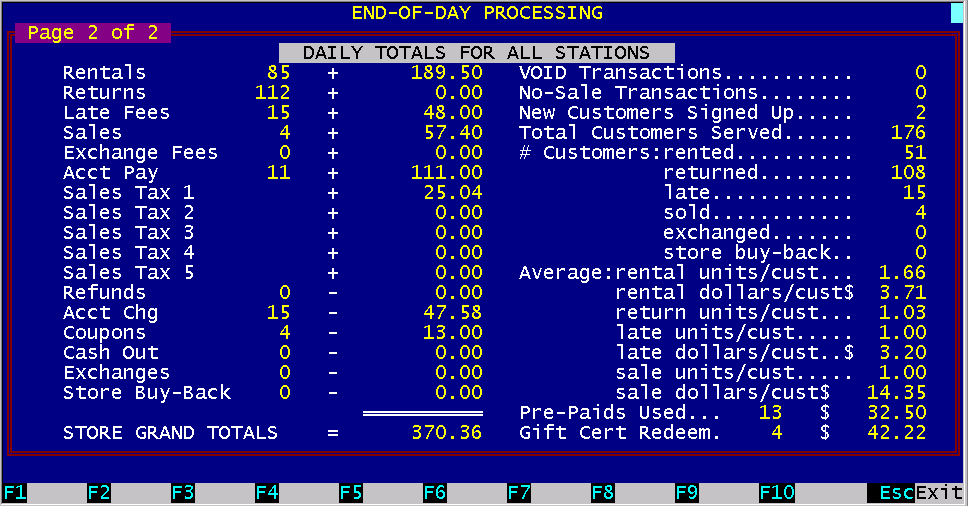
The storewide ring-out report is in the "Management Function", menu choice #9, "End Of Day" processing. This screen will give you the totals for all stations combined. When you press F9 (Go), you will print a storewide report of the totals for all stations. Then, depending on which options you have selected, the other reports will print. You can select which reports to print by answering "Y" to the following questions: Print Daily Storewide Ring-out Report? (Y/N) Print Daily Transaction Register Summary? (Y/N) Print Daily Detailed Transaction Register? (Y/N) Print Daily Clerk Transaction for each clerk? (Y/N) The station reports and the storewide reports do not have to be cleared at the same time. There are some stores that run 24 hours, or stores that have two or three shifts, so each clerk rings out their station at the end of their shift, which is independent of the storewide ring-out. If a comparison of the storewide report with the sum of the station reports shows a discrepancy, you can locate the source by examining each workstations report individually. Since these reports can be printed anytime throughout the day without clearing the totals, they can be easily used to spot a source of "revenue leaks." The following pages show an example of each of these reports.
Figure 16.3 End Of Period Processing
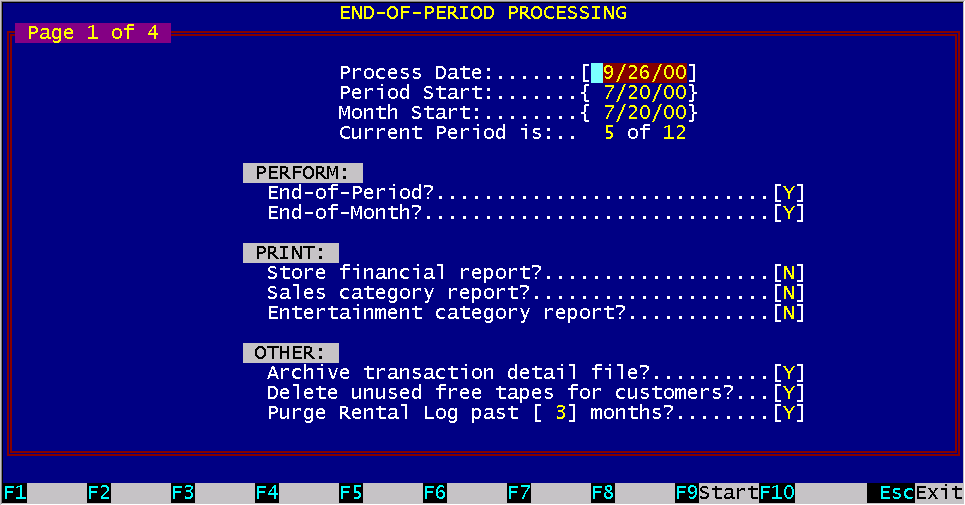
It is recommended that you run "Correct And ReIndex All 1Files" process from the "BizPie Startup Menu", option #4, "BizPie Index and File Maintenance", before running end of period processing. This will assure you that all of your data files are without any errors. If you run end of month processing without it, and if any errors are detected, you will have to run the correction process and the "End of Month" processing must be restarted from the beginning. The "End of Period' cycle can be selected in the "Store Information" section, where you indicate to BizPie the beginning of your financial period. Most businesses use a 12 period cycle, thus each period is a calendar month. You can also designate a 13 period year, thus making the end of period processing every 4 weeks (52 weeks / 4 weeks = 13 periods). Some accountants prefer this method of tracking a business because each period is exactly 4 weeks long, whereas the calendar method, each period varies according to how many days are in the month. As you can guess, you may also have a 52 period year, where each period is a week long. When you run the "End of Period' processing, the following will be performed: Period to Date values are zeroed out on EndOfPeriod Screen. Period to Date dollar figures are zeroed for all customers and all rental items. Period to Date rental count figures are zeroed for all customers and all rental items. Free Tape counts are updated for all customers (if used). Free tapes credits are accumulated during the month only if you are using the "Free tape with membership purchase" option in the 'Lookup Tables'; "Customer Plan" section. This feature permits the customer to receive a certain amount of free tape credits when they sign up as a benefit of that type of membership plan. You can also set the number of tapes permitted to be used per month of these free tapes. If these free tapes are not used up during the month they were earned, BizPie will ask "Delete unused free tapes (Y/N)" before the end of period processing is started. If you choose to have the customer loose the free tape credit they were given but not yet used during the period, BizPie will reduce the free tape count by one. If you choose to permit the customer to accumulate these free tapes, another one will be added to their free tape count (based on the setup in the "Lookup Tables" for this customer plan) during processing, if they have not exhausted the free tapes they earned when they signed up to be a customer. If you are using the depreciation feature of BizPie, all rental items that are setup with a "Depreciation Lookup Table" code will have their depreciated amounts calculated for this period automatically. Purge of the "History Log" file will also be performed The number of months the history log to be kept is displayed as it was setup in the "Store Information" section. If you choose to select a different number of months than it displays, just over type the new number before you answer "Y" to purge. This process will remove history log records older than the specified number of months. These history log records are a duplicate of each receipt line items by customer (Screen Page 4 of 5 in Enter/Modify Customer) and also used to display a list of customers who rented a copy of a tape in the past (Screen Page 4 of 4 in Enter/Modify Rental Item). You may interrupt the purge process and continue at another time by pressing the ESC key.
This date is set by the computer date. You can change this date to be the day you run the processing if its different. This date is what appears on the end of month reports.
16.4.2 Period & Month Start Date These dates are the ones you setup in the "Store Information". The period and month dates do not have to be the same. You can be using a 13 period year for accounting purposes, but a 12 period year for your customers. Thus, you can allow the free rentals to roll over on a calendar month in the customer accounts, but not do the end of period processing.
If you select "Y", you will perform the end of period functions as described above.
If you select " Y", you will perform the end of month functions as described above.
16.4.5 Print End of Period Reports If you select "Y", you will print the following reports: EndofPeriod Status report Sales by Category report Rental Item Category Performance report |
|||||||||||||||||||||||||
|
|||||||||||||||||||||||||
|
|||||||||||||||||||||||||
|
|||||||||||||||||||||||||
| [BizPie] [About Us] [Sales Information] [Service] [What's New] [SiteMap] | |||||||||||||||||||||||||
Please contact our Webmaster with questions or comments. |
|||||||||||||||||||||||||