|
|
|
|
|
|
|
|
|
|
|
|||||||||||||||
 |
|||||||||||||||||||||||||
 |
|||||||||||||||||||||||||
|
|||||||||||||||||||||||||
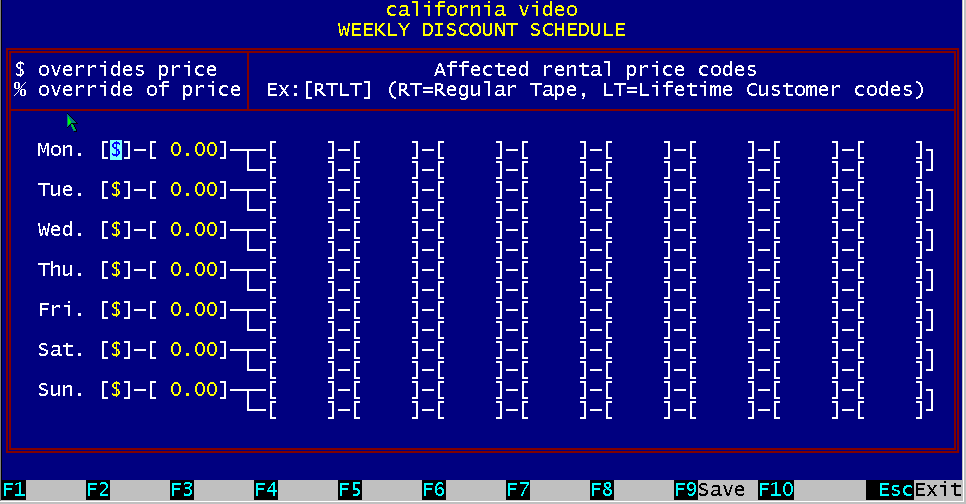
Figure 6.15 Weekly Discount Schedule
NOTE: Lookup Tables for "Rental Items" and "Customer Types" must be created first!
6.8.1 Using Weekly Discount Schedule With the "Weekly Discount Schedule" you can setup a seven day, weekly sale schedule that you want to have in effect for each day of the week. Once you setup these schedules, the BizPie will automatically apply this information to calculate rental prices, in conjunction with the "Rental Price" codes that you setup in the "Lookup Tables", when a customer rents a rental item from the rental inventory. To setup a daily sale schedule, enter the type of the discount into the first field. There are only two types of discounts available: a percentage or dollar. To use them you have to type in a percent sign, or a dollar sign.
If you enter a percent sign, the effect will be to multiply the rental price at the POS screen by the percentage value entered in the next field. This percentage value can be less than or more than 100%. As an example, if you enter 150%, the effect is to multiply the normal price by 150% automatically at the POS screen, without having to change the lookup table pricing. If you enter 50%, the effect would be to reduce the rental price in half for the specified combination of rental price code and customer plan.
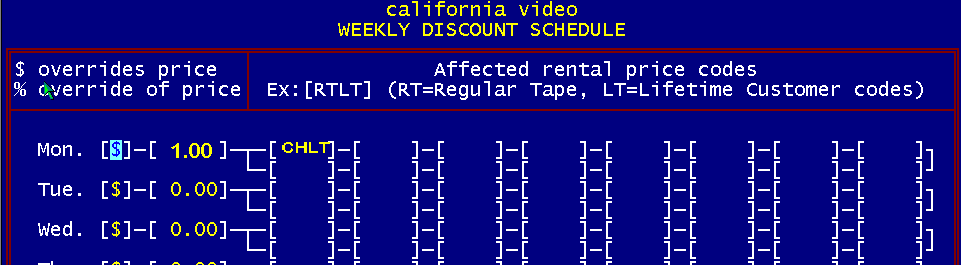
If you enter a dollar sign, the effect will be to replace the price on the POS screen by the dollar amount entered into the next field. The combination of "Rental Item Price Code" and "Customer Type" these figures will affect are entered into the sixteen fields that follow. This has the effect of overriding and recalculating the prices at POS screen for the combinations you have setup in the "Enter/Modify Lookup Tables" section, "Rental Price" codes. You MUST enter the two letter "Rental Item Price" code first, and then the two letter "Customer Type" code second into these fields! Figure 6.16 "CHLT' Discount Schedule
Suppose Monday we want to have a special promotion to rent all "CH', Children's Tapes, to
customers whom have a "L7", Lifetime customer type classification. Price code "CH' (Children's tape) was setup in the "Enter/Modify Lookup Tables"
to rent 1 tape for 1 day at $3.00. Normally when this tape is rented, the system will place a $3.00 figure on the screen for a rental
item that had this price code. Let's setup Monday's sale schedule as follows: select $ as the discount type enter 1.00 into the next field enter rental price code and customer type
"CHLT' (Children's tape, Lifetime customer) into the first price code field If a 'LT' (LifeTime customer) rents an "CH' (Children's tape), in this case
"Fantasia", the system will override the normal $3.00 price setup for "CH' tapes, and inserts the special
discount price of $1.00 for this tape. The original $3.00 price you setup in the "Rental Price" code section is left unchanged, and will be used on the rest of the days of the week.
If you do not want to have another discount in effect for any of the other days of the week, just
leave the amount fields as zero, and the normal prices will be in effect for that day as setup in the "Enter/Modify Lookup Tables" section for "Rental Price Codes".
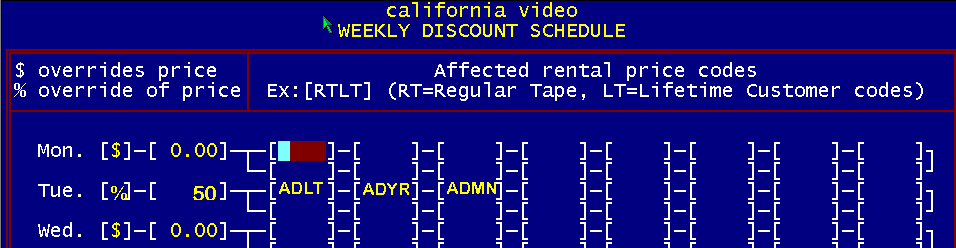
Figure 6.17 ADLT, ADYR & ADNM Discount Schedules
We want to setup a special promotion to rent all our 'AD" (Adult) type tapes to 'LT' (LifeTime customers), "YR" (YeaR members), and "NM' (NonMembers) on Tuesday.
We have to be sure that these types of tapes and customers have already been entered into the system.
Let's setup Tuesday's sale schedule as follows:
The effect of these three discount prices will be to automatically change the prices on the POS screen on Tuesday to be 50% less than the prices you have setup in the "Rental Prices" section of the "Lookup Table Codes" for these combination of tape types and customer types.
As you can see, with this pricing and discounting scheme, there is practically no limit to the combinations you can setup for each day of the week.
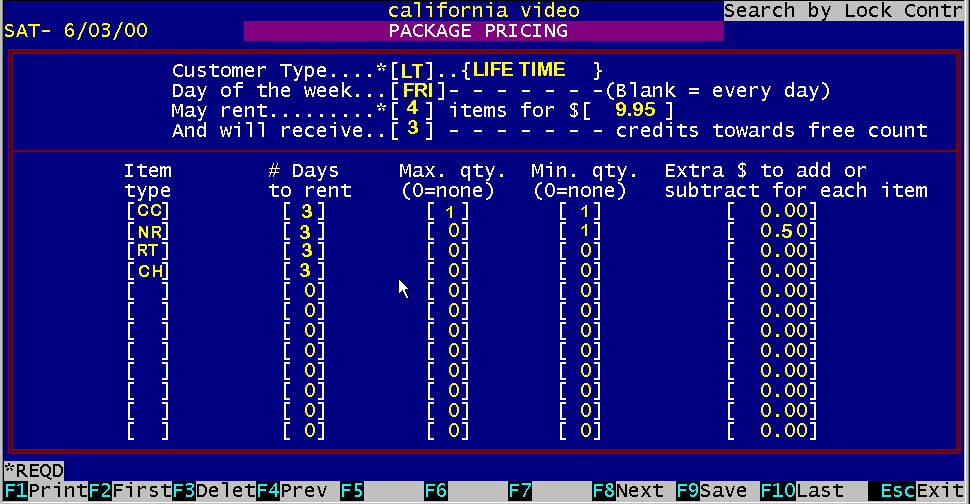
Figure 6.18 Package Prices #6
Selecting the "Lookup Table Main Menu", choice #6 will allow you to create special package pricing groups. Package pricing is designed to allow you to combine any rental item regardless of their normal rental price, into a single priced rental "Package" Example: Customer type LT (LifeTime) on Friday may rent any 4 items specified for three days for $19.95, and these 4 items may be any combination of: Figure 6.19 POS Package Pricing
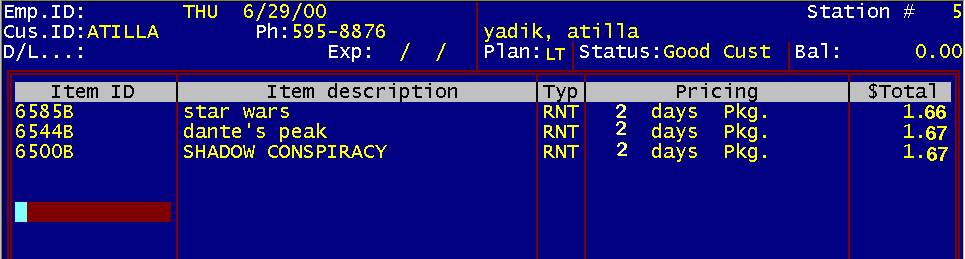
The "Package Pricing" will take effect automatically when the correct number of items (3 in this example) appear on the POS screen that match the package you have setup in this "Lookup Table". Also note the two day specification in the package price table. This will activate the package pricing only if each item contained in the package are rented out for two days by scanning each item ID two times for each day to be rented. As soon as you scanned the third rental item two times, the package pricing will be displayed on the POS screen with the correct package price you have entered in this lookup table. When the package pricing takes effect, the rental item codes on the POS screen will be replaced with the word "Package". You can rent, sell etc. any additional items on the POS screen. NOTE: There is only one "Package" permitted in a single transaction on the POS screen of the same tee. You may have different packages of different types on the POS screen in a single transaction. You can enter multiple "Packages Pricing" codes for the same "Customer Type", using different quantity of items. For each different quantity, a "New Record' message will display on the top left corner to indicate that this package is not yet in the system. You MUST have both the "Rental Item Price Code" and the "Customer Plan Code" already in the system in order for "Package Pjzcing" to work.
The customer type must already exist in the "Customer Plan Type" lookup tables.
The day of the week this "Package Pricing" will be in effect.
This number limits the number of items required to set the package deal.
This sets the price for the total package which will be charged at the POS screen.
This sets the number of free rental credits the customer will receive when renting this package.
Specify the "Rental Item Code" previously setup in the "Rental Item Pricing" section of the "Lookup Tables". You can enter up to 12 separate rental item codes. If the quantity of items specified above in "May Rent" appears on the POS screen, the "Package" pricing will appear for these items. If you specify more "Rental Item" codes than the number required, any combination of items with these codes, up to the specified number, will trigger the "Package" price.
The default number of days is automatically one. If another number appears here, the individual tape with that "Rental Item" code will be rented for the number of days specified. Lookup Tables Package Prices !
You can limit the number of items rented in the package by entering a number other than one. This allows you to prevent a customer from renting more than one new release as part of the package.
You can force the package to have at least this number of items of this category in the package by entering a number. This prevents a customer from renting if the package does not contain the required minimum items as part of the package.
6.9.10 Add/Subtract Dollar Amount By entering a positive dollar amount, you can add a "surcharge" to an individual "Rental Price" code group. An example is if you want to charge $5.00 more for a VCR if the package includes the VCR. You can also enter a minus sign in from of the amount to subtract from the total package price.
6.10 Rental Item Depreciation #7
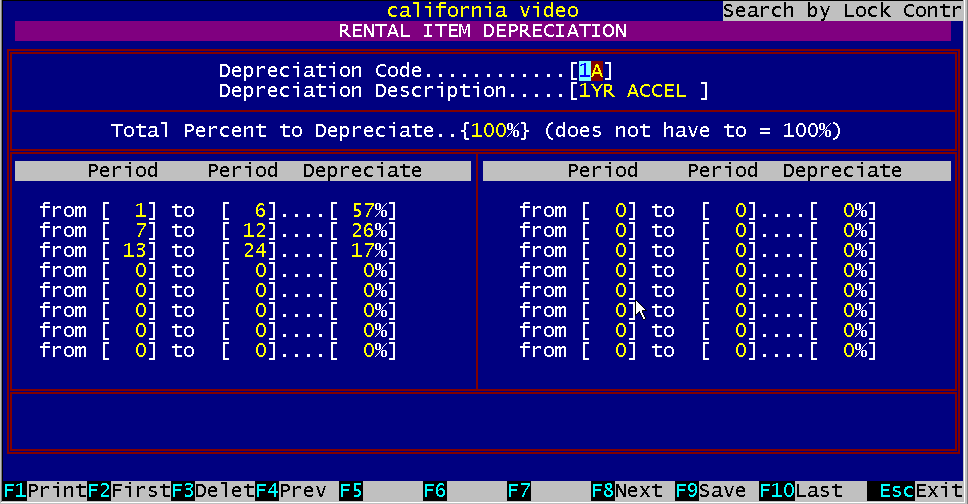
Figure 6.20 – Rental Item Depreciation - #7
Selecting "Lookup Table Main Menu", choice #7 will allow you to enter your depreciation codes. The preferred way to depreciate rental inventory (video tapes only) is called "Income Forecasting". If this is the method you choose, you cannot use this section to depreciate your tapes. You must use the "Estimated Income" field in each individual rental item in the "Enter/Modify Rental Item" section of BizPie. You can still use this section to depreciate your rental equipment, such as VCR's, Camcorders, etc. You cannot use "Income Forecasting" for these types of items. If you choose to depreciate your rental inventory using the MACRS (Modified Accelerated Cost Recovery System), you can enter a code to use for the number of periods an item will be depreciated. Each group of MACRS items are setup to depreciate over a certain number of periods. You can vary the depreciation percentage rates across any number of periods, as long as they add up to 100% (MACRS only). By setting the depreciation total amount to be less than 100% (Eg: 90% for "Straight Line" with 10% salvage value) you can automatically use the other methods of depreciating. The depreciation is calculated during the normal "End of Month Processing" section of BizPie. Each and every rental item's depreciated values are updated completely automatically once you set this up. If you leave the rental item lookup table code for depreciation out of the rental item in the "Enter/Modify Rental Item section of BizPie Item", no depreciation values will be calculated. You can use other methods of depreciating video tapes,. such as "Declining Balance", "Sum of the Years" or "Straight Line". Due to the flexibility of this section, you can select whichever method suits you.
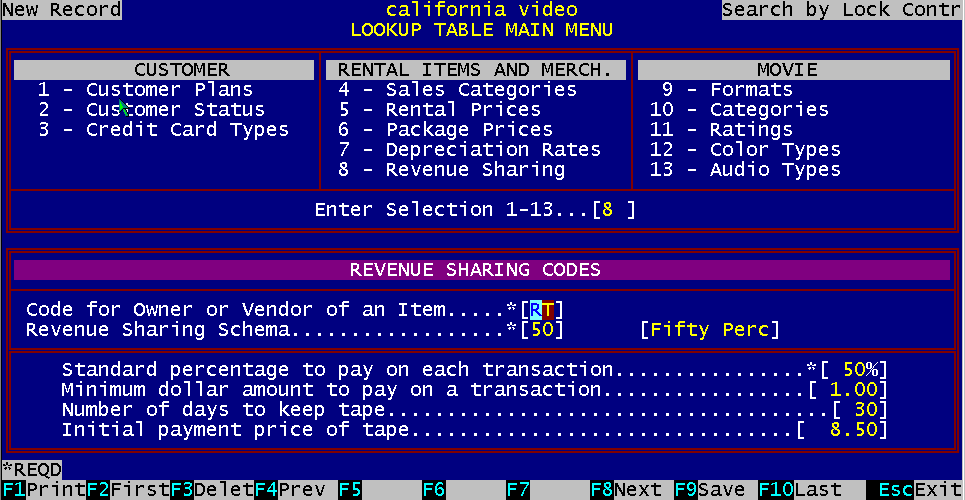
Figure 6.21 Revenue Sharing #8
Selecting "Lookup Table Main Menu", choice #8 will allow you to setup your revenue sharing codes. If you have a part of your rental inventory from a source where you share the rental income with them, this lookup table will allow you to track it completely automatically.
You can setup a "Owner Code" to indicate the source of the rental item. Every source of tapes can be tracked by using differrent codes for each vendor.
Setup the code to differentiate between the percentages of a group of tapes from the same vendor, or from different vendors. Thus the same vendor can provide you with several different pricing percentages, and you will be able to track it automatically.
6.11.3 Percentage To Pay Each Transaction This field is used to generate the actual shared revenue to give to the vendor. This number is used to track the rental item completely automatically once the "Revenue Sharing" code is entered into it.
Enter an amount if the vendor requires a minimum dollar amount for this code, regardless of the actual amount earned
If there is a time limit on the number of days you may keep a rental item, this field will provide a method of tracking it.
The amount you paid to acquire a tape that is using this lookup table.
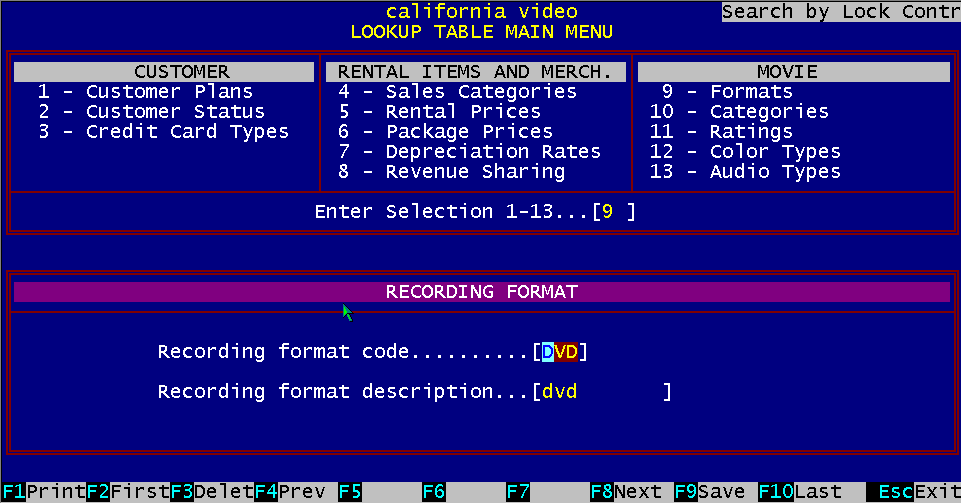
Figure 6.22 Recording Formats #9 The recording formats Lookup Table is used to designate the media used to record the movie on.
When new recording formats are developed you can assign a new format code. Recording format Lookup Table is used in the "Enter/Modify Rental Items" sections. This Lookup Table is used primarily for printing reports and counting inventory by tape format.
6.12.2 Recording Format Examples The following table shows some of the typical recording format examples for a video tape rental store. Code Description Item [VHS ] [VHS ] VHS [BET ] [BETA ] Beta. [LAS ] [LASER ] Laser disk [8MM ] [8MM ] 8MM video cassette [PAL ] [PAL ] European format [CED ] [RCA DISK ] RCA disk format
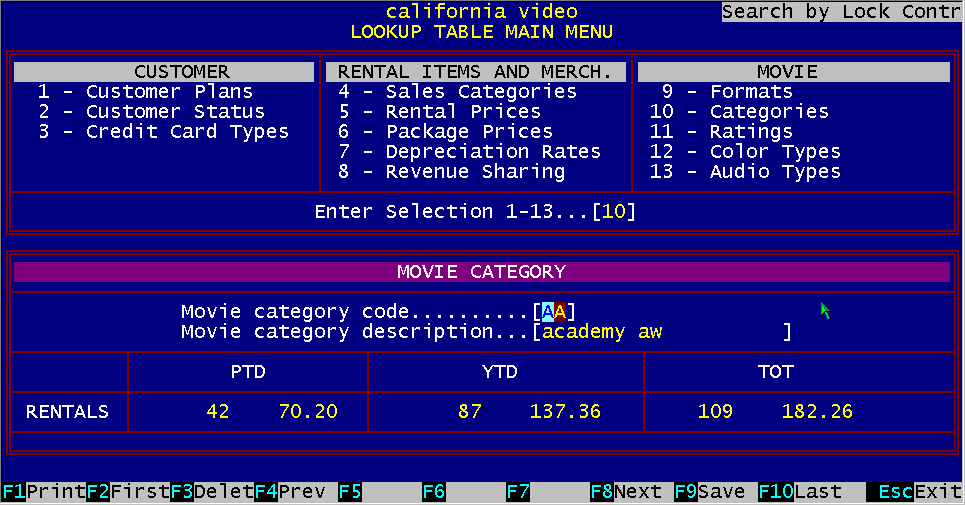
Figure 6.23 Movie Categories # 10 Movies are classified by type to inform the viewing audience about the type of film. These categories are relatively arbitrary and choosing them is subjective. We have supplied a default set that will cover most categories. You may use these and add to it at a later date as you find a need.
Assign a two character category code with a ten character description of the code. Whenever a new tape is placed into the system, you can describe it using this Lookup Table. This Lookup Table code is used in the "Enter/Modify Rental Items" section, page number one. This category is also used to print reports by using the major "Movie Category" as the heading for tapes. You can also scan a movie in the "Enter/Modify Rental Items" section, page number one" section of BizPie by the Movie Categories. Thus you can scan all Comedies, Dramas, etc. Two fields are provided there for you to describe the movie. First is called a "Major Classification", and the second is called "Minor Classification". The Lookup Table codes entered in this section are used by both of the Major or Minor Classification fields in the "Enter/Modify Rental Items" portion of BizPie to describe the movie. The purpose of these two codes is to further refine the classification description of a movie. For example the move "Gone With The Wind' can be classified as "Drama", but it is also a "Classic". Now you can have both classifications. The major being drama and the minor being classic. Another example would be a musicalcomedy movie. We do not need to define a table code for "Musical comedy" as we have one in the list for "Musical" and a second one for "Comedy". Having two categories assigned allows a much more detailed description of the movie without a long complex list of Lookup Table codes .
6.13.2 Movie Category Examples The following table shows some of the typical movie category examples for a video tape rental store. Code Description Item [AD] [Adventure ] Adventure [CH] [Children ] Children's movie [CL] [Classic ] Classic old movies [CO] [Comedy ] Comedy [DR] [Drama ] Drama [HO] [Horror ] Horror [MU] [Musical ] Musical [MY] [Mystery ] Mystery [RO] [Romance ] Romance [SF] [Sci. Fi. ] Science fiction [CA] [Cartoon ] Cartoon [FT] [Fairy Tale ] Fairy Tale [WR] [War ] Combat war movies [WE] [Western ] Western [DT] [Detective ] Detective
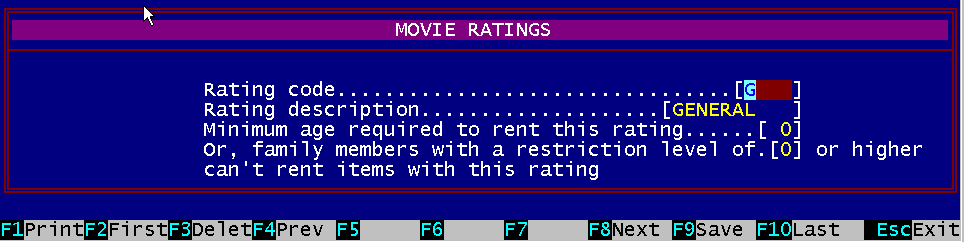
Figure 6.24 – Movie Ratings - #11
Up to now, all table codes have been two letters. Because of the rating system currently in use, the table code we use for rating movies is four letters or numbers.
Movie ratings Lookup Table describes the MPAA (Motion Picture Association of America) assigned rating for each movie released. There are some movies released before the rating system was in use, so you can use "NR" (No Rating) for these movies, or you can create your own internal rating system in addition to the MPAA rating system. An example would be where you like to provide a more detailed rating of movies to your customers so they can decide which movies are too violent for their children to see. You could enter a rating of "PGVI" with a description of "Holent". Then when you enter a movie like "First Blood' which is rated "PG", you could rate it as "PGVI'. Now you can prepare a movie list for the counter so parents could look at the ratings and know whether or not to rent the tape for their kids.
Set the minimum age required to rent this movie rating. The customer must have the birth date in the files. This age is checked for each family member.
6.14.3 Movie Rating Rental Restriction Level
Figure 6.25 Rating Restriciton Level
The "Rating Restriction Level" is used to restrict which rating an individual family member can rent. Level "0" is unrestricted and level 8 is the highest. Restriction level "9" is reserved by BizPie to prevent a family member from renting anything. An example is when juniors' father does not want him to rent video game cartridges. You would assign a "Restriction Level = 6" to Lookup Table code "VG" (video game). BizPie will alert the clerk that junior is not allowed to rent this item when junior attempts to rent a video game that's assigned restriction level 6 or higher. You would also assign a restriction level of 6 to Juniors' name in the "Enter/Modify Customer" screen, Page 1. If you assign a "Restriction Level" of "9" to junior, he won't be able to rent anything, but the rest of the family members can. Another use of the Movie Rating is to print counter catalogs for your customers: Example #1: You can select to print a counter list of all "G" rated movies, another for all "PGl3" rated movies, etc. Example #2: You want to see the rental item financial performance of all your adult tapes during the last 30 days after the initiation of a promotional ad campaign by selecting to print all your "X" rated movies.
Since you can create your own movie ratings, and assign rental restrictions to them, there is no limit to the possibilities.
The following table shows some of the typical movie rating examples for a video tape rental store.
Code Description Item [G ] [GENERAL ] General [PG] [PARENT GUI ] Parental Guidance [PG13 ] [PARENT 13Y ] Parental Guidance, 13yr.
[R ] [RESTRICTED ] Restricted [X ] [ADULT ] Adult [PGVI ] [VIOLENT ] Violent [NC17 J [ADULT ] Adult
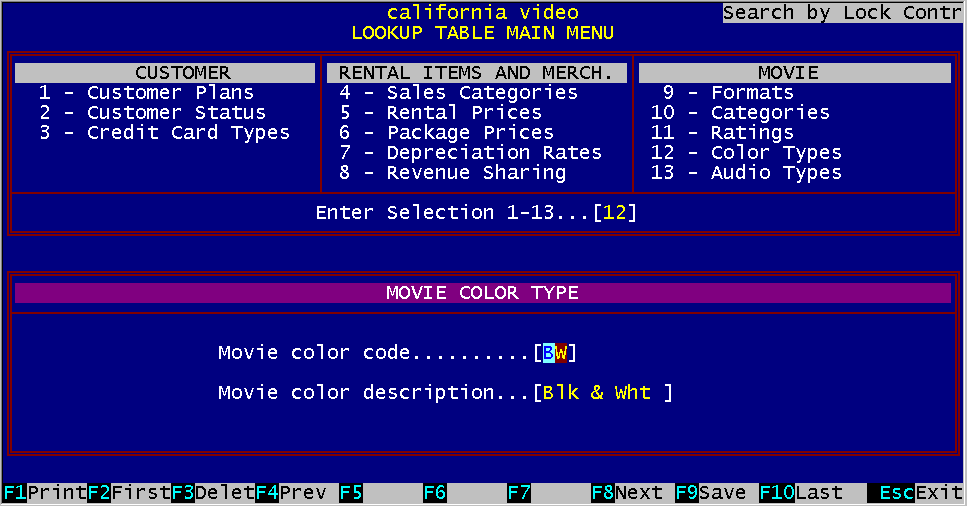
Figure 6.26 Movie Color Types # 12
This Lookup Table is used to describe the visual color of the movie. There are movies which were originally made in black and white, and a new release was remade in color with the same title. There are movies which were originally in black and white, but computer enhanced color was added to it. This Lookup Table will allow you to differentiate between them for your customers' information.
6.15.1 Color Category Examples The following page shows some of the typical color category examples for a video tape rental store. Code Description Item [BW ] [Blk/White ] Black and white movie [CC ] [Comp color ] Computer enhanced color [CO ] [Color ] Normal color movie
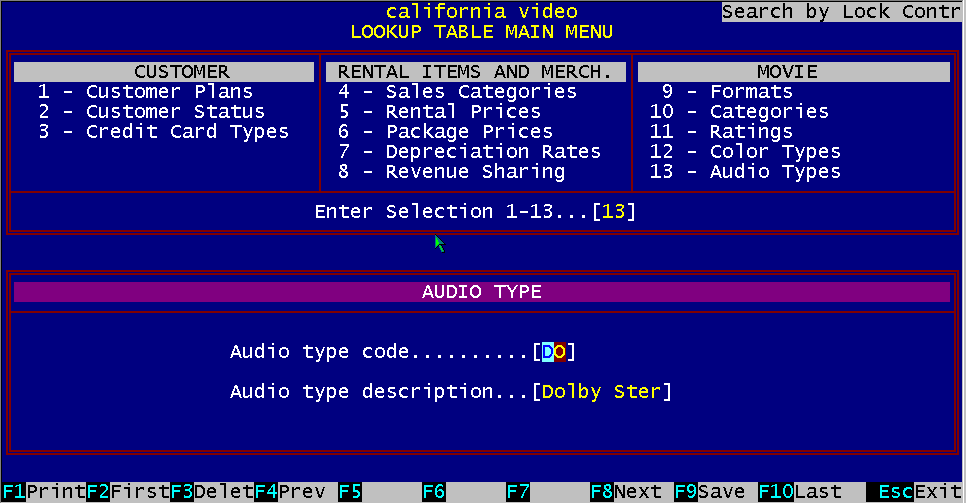
Figure 6.27 Audio Types # 13
Audio Types Lookup Table is used to describe the form of the soundtrack of the movie. The two character code gives you the ability to enter any possible type of soundtrack. If the movie is in Dolby Stereo, you can code it "DS" and describe it as "Dolby Ster'. The audio type Lookup Table is used in the "Enter/Modify Rental Items" part of the system. This Lookup Table is used primarily for printing reports.
The following page shows some of the typical audio type examples for a video tape rental store.
Code Description Item [SIL ] [SILENT ] Silent movie [MON] [MONO ] Monophonic [STE ] [STEREO ] Stereo [SHF ] [STEREO HIF ] Stereo High Fidelity [4CH ] [4 CH STER ] Four channel stereo
[DOL ] [DOLBY STER ] Dolby stereo [SYN] [SYNTHESIZE ] Synthesized stereo [4DLP] [4 CH DOLBY ] 4 Channel Dolby stereo
[SS] [SURROUND S] Surround Sound
|
|||||||||||||||||||||||||
|
|||||||||||||||||||||||||
|
|||||||||||||||||||||||||
|
|||||||||||||||||||||||||
| [BizPie] [About Us] [Sales Information] [Service] [What's New] [SiteMap] | |||||||||||||||||||||||||
Please contact our Webmaster with questions or comments. |
|||||||||||||||||||||||||