|
|
|
|
|
|
|
|
|
|
|
|||||||||||||||
 |
|||||||||||||||||||||||||
 |
|||||||||||||||||||||||||
|
|||||||||||||||||||||||||
We have to do several things that require one to know some basic computer skills to get started. If you don't have any computer experience, it will save some frustration if you have either a dealer If you are on your own, don't give up, just be patient.
Your computer system typically consists of the following equipment parts: This section will discuss how the hardware is connected, and the network connection will be deferred
The WBT is a small computer box to which all other peripherals, such as the mouse, keyboard
There is a power switch on the front of the WBT. Turn it to the off (no lighting on the button) position.
Plug the keyboard into the connector on the back of the WBT.
The connector is designed so that it will only push on one way and there is only one connector that it
The mouse is another device to let user to interface with the computer. However, the current version of
The monitor is what looks like a small TV set. The monitor has two cables coming out the back.
Connect the other wire to the mating plug on the back of the WBT. It should be the only connector
You can easily see which way they fit. Plug in the connector to the WBT and tighten the connector
Connect the printer to the WBT in the same way that you connected the monitor. There are two
Next connect the data cable (the other wire.) One end will connect to the back of the printer and be
If you have an optional bar code reader, you can install it by first making sure that you exit BizPie You can now unplug the keyboard and plug the bar code reader cable in its place. Plug the keyboard Please be careful! Both plugs can only go in one way. Now you may turn on the WBT, and resume
The base of the bar code reader is a small box with a cable coming out of it. There are two connectors,
Hold the barcode wand like a pencil. Scan the barcode label as if you were drawing a line through the Pressing harder on the barcode label will not make it read any better!
3.3.1 Network Connection – single station If you have two or more stations, you need a router for the internet connection. Please refer to the next If you have a single station, you connect directly the DSL modem to WBT using a Ethernet cable. There
3.3.2 Network Connection – multiple stations If you have two or more stations, you should have a router. A router provides means for many stations
Connect the power transformers of the router and hub to the power source. Make sure that you use
Connect the cross-over cable from the back of the modem to the back of the router marked "WAN".
Now connect from the "LAN" port of the router to the "uplink" port of the hub. Again, make sure link Next, connect the hub to the WBT using straight Ethernet cables. Check to see that active lights are lit on both Now you are ready to turn on the WBT to make connections to the BizPie Server.
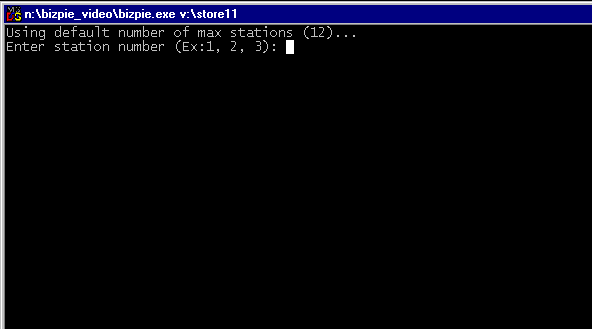
Figure 3.1 Startup Menu
Once your connection to the BizPie Server, the first screen you'll see is as shown in Figure 3.1. The
Upon entering the station number, you are now ready to use the BizPie POS software.
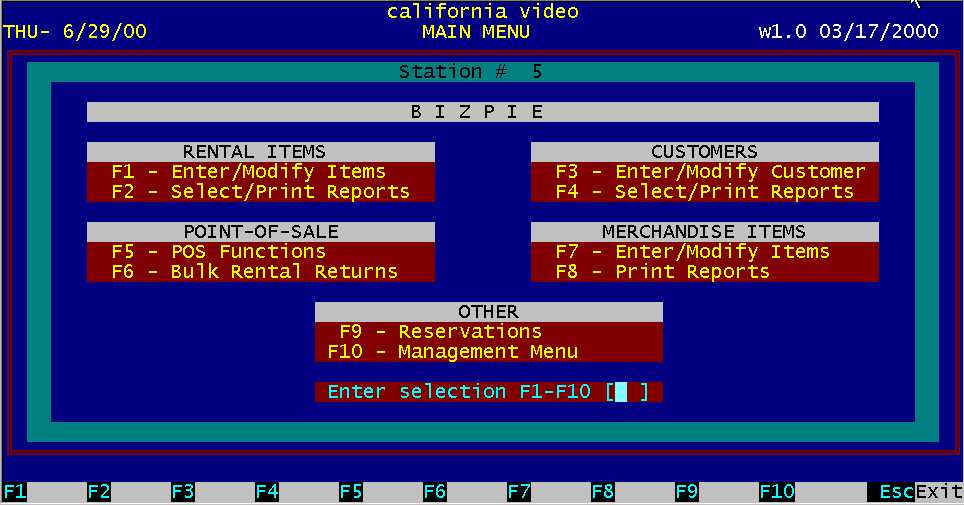
Figure 3.2 Main Menu
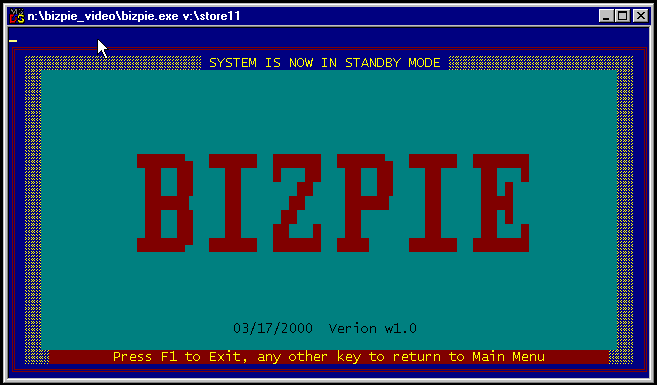
3.5.1 Selecting from the Main Menu To select the section of the BizPie to run, type in the appropriate number and press the "Enter" key. You will immediately see the selected menu option screen displayed. Now you may proceed to use the section. Pressing the "Esc" (Escape) key will always return you to the previously used section from anywhere in If you press the "Esc" key at the Main Menu, the system displays a special screen with "BizPie" on it as
The system at this point goes into "Standby Mode". This means that if there are any problems external
Pressing F1 key will disconnect the BizPie from the server. You have to reconnect to the BizPie server
Figure 3.3 – Standby mode
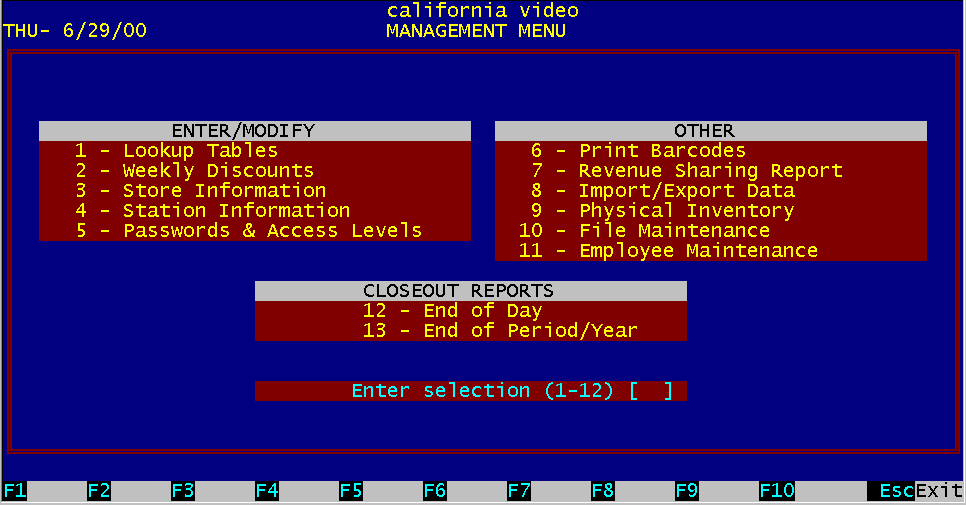
Figure 3.4 Management Menu
3.6.1 Selecting from the main menu Selecting choice number ten of the Main Menu will take you to a submenu for the Management Functions (Figure 3.4). This menu may be password protected, just as the other menu choices. To use any of the choices presented in the Management Menu, you must enter the appropriate password to proceed ii passwords are implemented. Pressing the "Esc" (Escape) key will return you to the previous screen, which was the Main Menu.
|
|||||||||||||||||||||||||
|
|||||||||||||||||||||||||
|
|||||||||||||||||||||||||
|
|||||||||||||||||||||||||
| [BizPie] [About Us] [Sales Information] [Service] [What's New] [SiteMap] | |||||||||||||||||||||||||
Please contact our Webmaster with questions or comments. |
|||||||||||||||||||||||||