|
|
|
|
|
|
|
|
|
|
|
|||||||||||||||
 |
|||||||||||||||||||||||||
 |
|||||||||||||||||||||||||
|
|||||||||||||||||||||||||
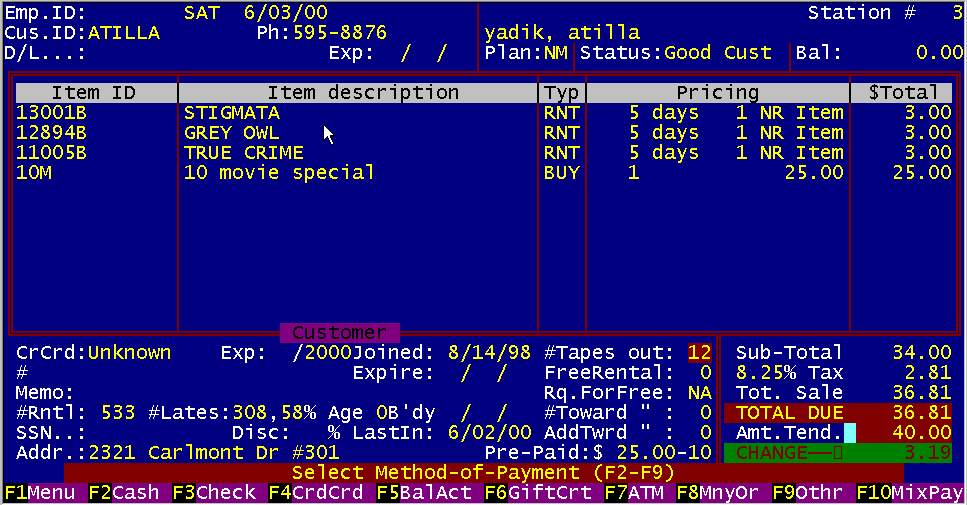
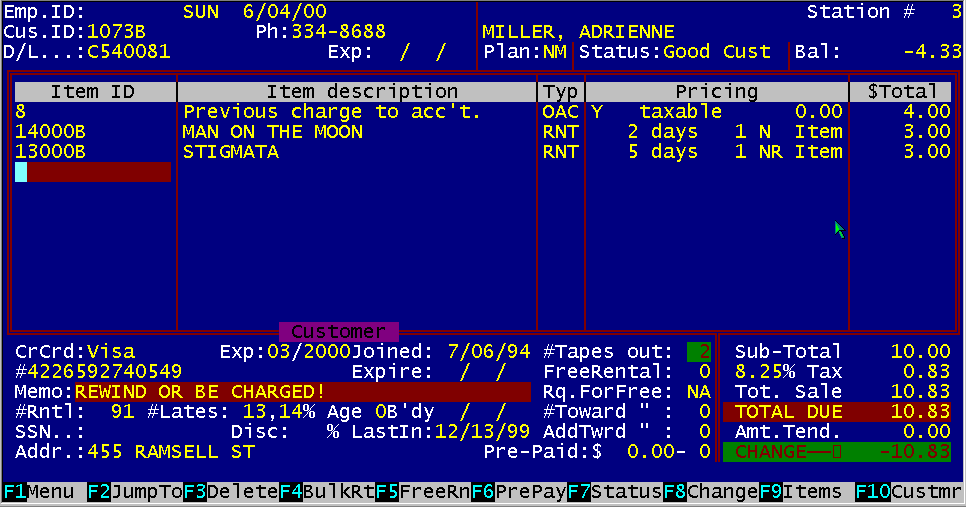
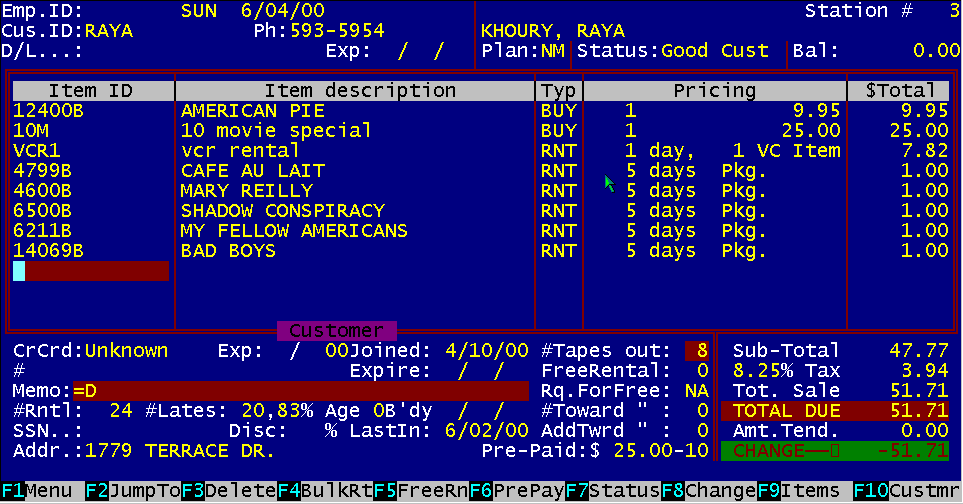
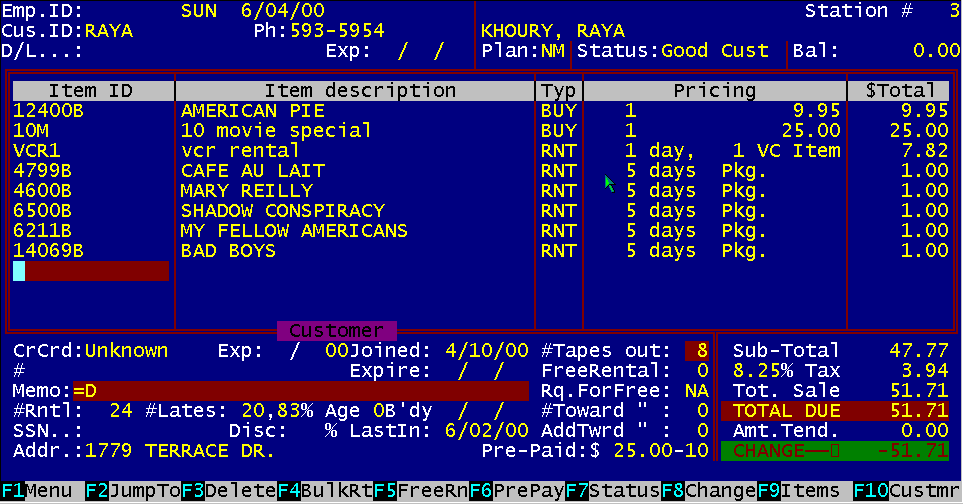
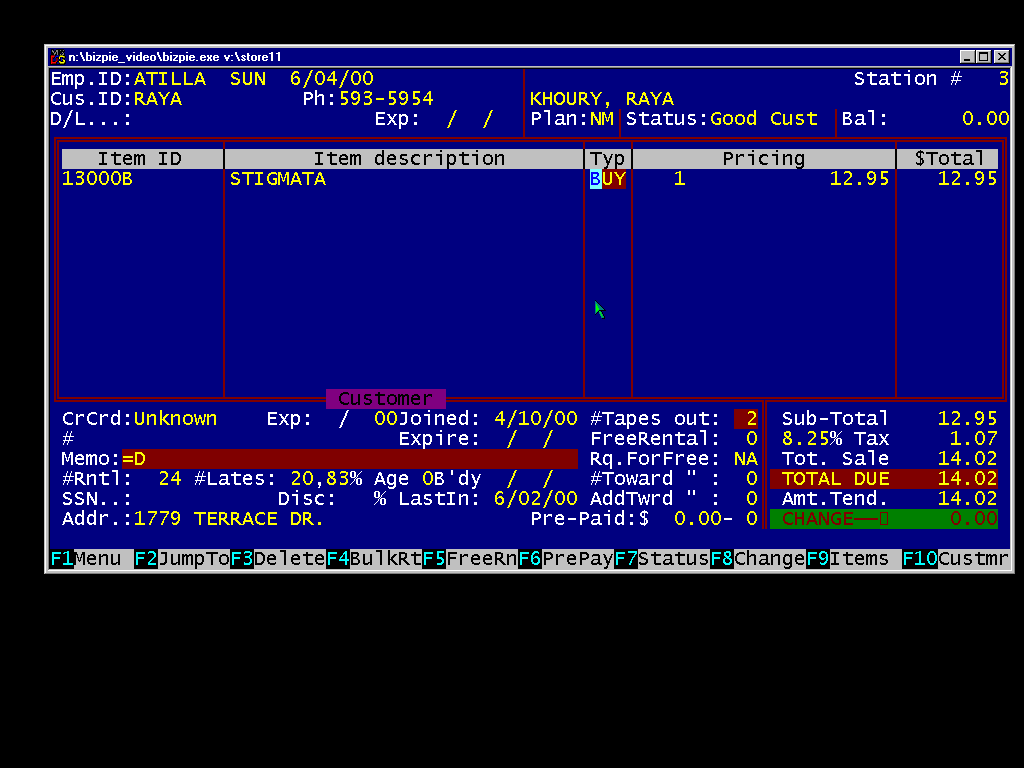
The PointOfSale section is the heart of The BizPie system. Everything revolves around the activity in this section. The POS screen is an image of the actual receipt being printed. To help you understand the functions to be performed, the screen is divided into five sections: Each of these sections have a somewhat different way of entering, exiting and modifying the information contained within them. All of the full screen editing features of the system are in effect, with some restrictions applicable only to the POS screen. For example, you will not be able to alter the prices on the POS screen for rental items. The four arrow keys on the numeric keypad, the normal "Enter" key, and the Function Keys F1F12 are all that are needed to move the cursor on the screen. You can also instantly go to the "Rental Inventory"; "Merchandise Inventory" ; "Customer File" and "Reservations" sections directly from the POS screen. When you exit these sections, you will return to the exact spot on the POS screen. This ability allows you to instantly add new customers, lookup rental and merchandise items and make reservations without having to cancel the transaction or reenter all the items.
Figure 12.1 Typical PointOfSale Screen
The most flexible part of BizPie system is the way the POS section operates. Since this section affects the whole system, there are many different ways of accomplishing a task. This gives you the opportunity to operate your business the way you want to, rather than the way BizPie operates. As an example when a transaction is complete, almost all of the data files are updated automatically. Therefore it's important to fully understand the operation of this section. Even thought there are many options that may be used, a standard rental and return transaction is very simple. The first time user can learn the simple process of a transaction in a very short time. This allows new employees to learn BizPie in a few minutes, rather than hours, even if they never used a computer before.
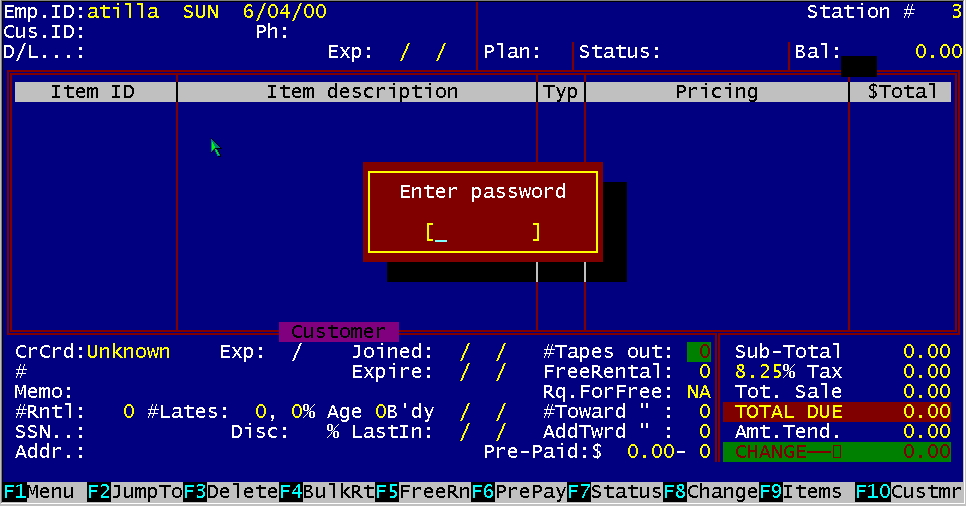
Figure 12.2 Entering Employee ID
It's recommended that you use the "Employee ID" in every transaction, so that each employee will be accountable for the transaction! Also, the end of day reports have an optional report that can print the activity by individual employees. There are several "Employee ID" setup options available: Start all transactions in the "Employee ID" field Employee must enter their ID Employee must enter their password (This password may have an 'Access Level" assigned to it, which limits the employee's access to other parts of the system) Clear employee ID and Password after each transaction These options are available in the "Management Menu" section, in "Store Information" (Ch5) and 'Access Levels & Passwords" (Ch10). The Employee ID and Employee Password may have a barcode label printed which may both be attached to an Employee ID card. This would make it easy for the employee to just scan their ID and Password with the barcode reader (Ch 11).
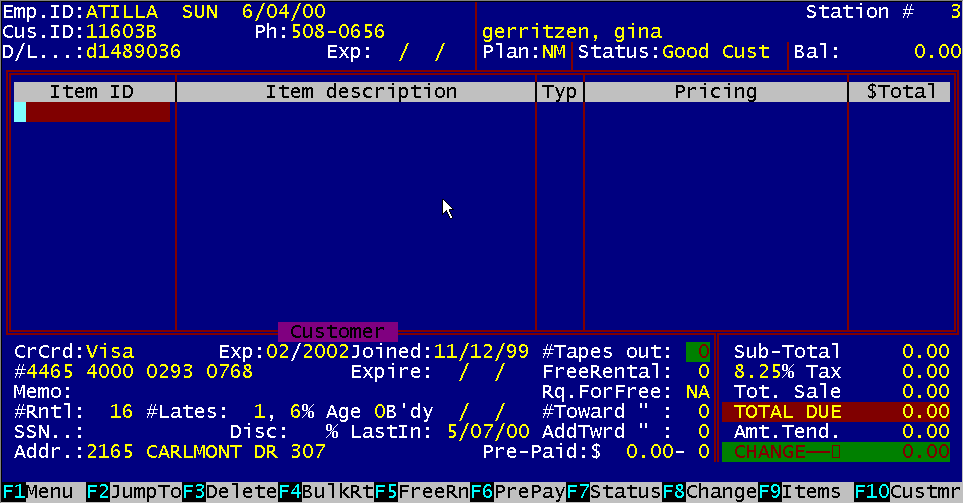
Figure 12.3 Entering Customer ID
To initiate a transaction enter a customer ID, a customer phone number or a customer name. One of these must be used to identify the person for the transaction. There are four exceptions where a customer ID is not required to be entered. When you want to sell an item out of the merchandise inventory. This type of transaction does not require a customer ID to be on the screen. When you want to sell a rental item out of the rental inventory, and if no customer name is entered yet, just enter the ID of the rental item to be sold. The bottom of the screen displays a message asking you "No customer selected. Do you want to SELL this item? (Y/N)". If you respond with a "Y; and if this item is marked as "Saleable"; then the retail sale price will be placed on the screen, rather than the rental price. If the person does not want their name in the computer, you would treat them as a "John/Jane Doe" type of customer (DR type). This method of renting to a customer does not require any permanent information to be entered about them. The "Customer ID" field normally has a customer ID placed in it. If there is no customer ID in this field, the system assumes a "John/Jane Doe" type customer type of transaction. The system assigns the next available receipt number as a temporary customer ID, therefore there is nothing special for you to do. This temporary ID will be printed on the receipt and recorded in the transaction file.
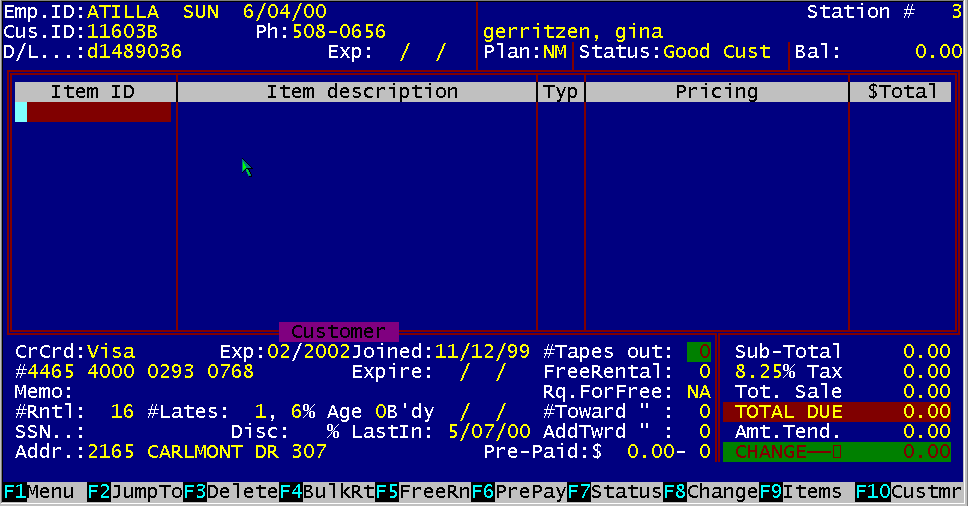
A customer ID can be entered either by using the keyboard, or scanning their membership card with a barcode scanner. You can use either one without having to do anything special. If an existing customer ID is entered, the customer file is searched for that customer and if found, the information is displayed on the "Customer
ID" line near the top of the screen. Other customer information from the customer file is displayed on the bottom left side window of the POS screen.
If you have to change the "Customer ID", press the "Home" key to go to the "Employee ID" field and then press "Enter"
to move into the "Customer ID" field to make the change. NOTE: If there is already a returned tape on the screen, the "Customer ID"
can't be changed unless the tape is deleted from the POS screen.
Figure 12.4 Search for Customer by Full Name
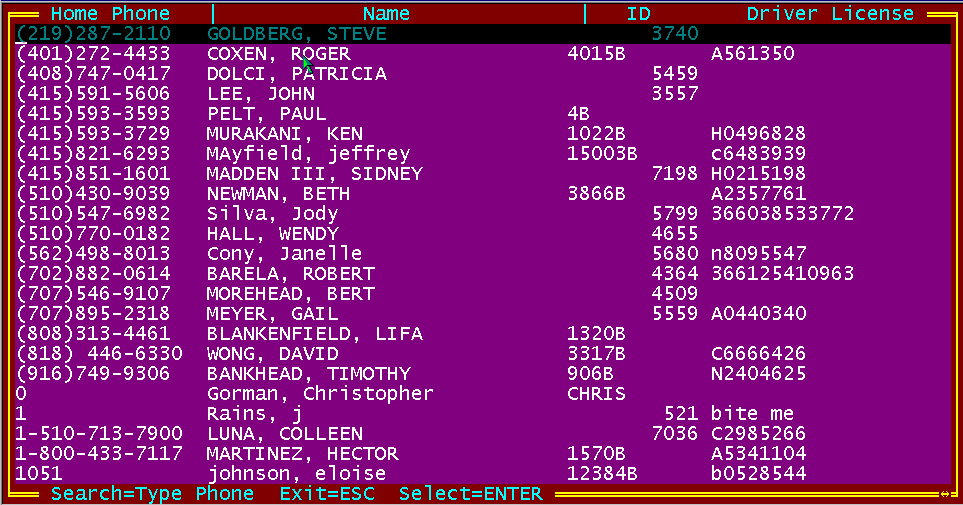
You may retrieve a customer by using their phone number, instead of their ID. Press the Enter key at the Customer ID field to move to the Phone Number field. You can now enter the full telephone number exactly as it appears in the customer's record, including the area code (if there is one). An alternate method of searching for a customer's telephone number is with the use of the "Pop Up" menu described on the next page.
Figure 12.5 Search by Telephone Pop Up Screen
By pressing Function Key FIO, you will see a "Pop Up" window where you can enter a customer's telephone number. If you enter only part of the number, BizPie will search for the nearest match, and will place the cursor on the top of the window. If that is not the customer you want, you can press the "Up/Down Arrow" or the "PgUp/PgDn" keys to scroll to another telephone number. When you found the one you want, press the Enter key. That customer will now be placed on the POS screen.
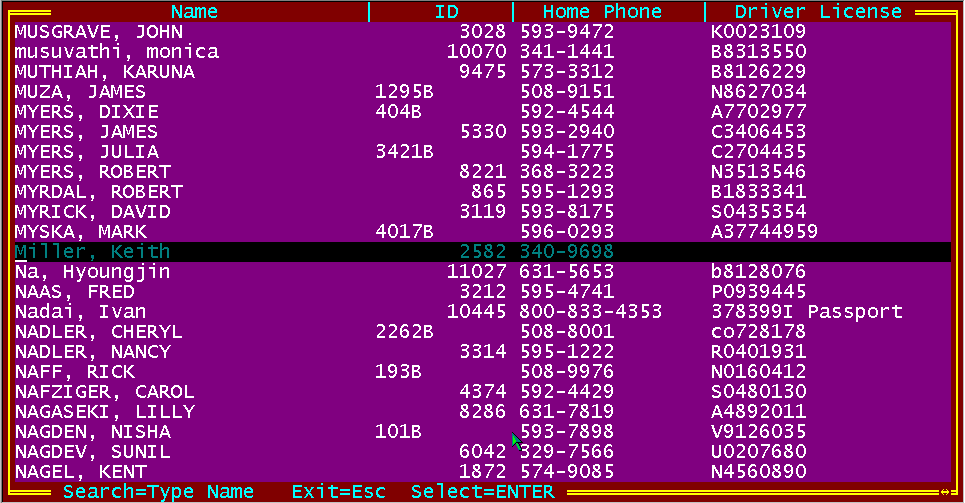
Figure 12.6 Search for Customer by Full Name
You may retrieve a customer by using their name, instead of their m or phone number. Press function key "F10" to position the cursor to the customer name field on the screen. You can now type in as few letters of the last name as you can, or the customer's full last name and first name separated by a comma. When you press "Enter", BizPie will search for the first customer with that name and display their information on the screen. The information displayed on the top of the POS screen is the Customer ID, Customer Status, Customer Type Code, On Account Balance, Customer Memo, and on the bottom left window of the POS screen a summary of pertinent information from the customers file. You may also scroll through the customer file by pressing "Function Key FIO" twice, which will pop up a screen for you to enter the customer's name (see following page). After the "PopUp " screen is displayed, you can enter a partial of full customer's name. When you press Enter, BizPie searches through the customer file for the closest matching name. The name will be on the top line of the "PopUp" screen. If that's not the customer you want, you can select another one by using the "Up/Down Arrow" or the "PgUp" or "PgDn" keys to scroll through the customer file. When the customer you want is highlighted by the cursor line, press enter. This will select the customer to be on the POS screen. Figure 12.7 Search for Customer Name "Pop Up"
Figure 12.8 Select Other Family Members to Rent
You may select any one of three additional family members within the same "Customer ID" code by pressing the "Page Up", or the "Page Down" keys to scroll through the four family members, including the main family member. The family member remaining on the screen is the one which the transaction will be recorded for. The "Rental Restriction Level" codes are enforced at this point for the individual family member as they were setup in the "Enter/Modify Customer" section of BizPie, (Ch 8). If a family member is not authorized to rent a tape, the bottom of the POS screen will say so, and will prevent the rental item from being placed on the screen.
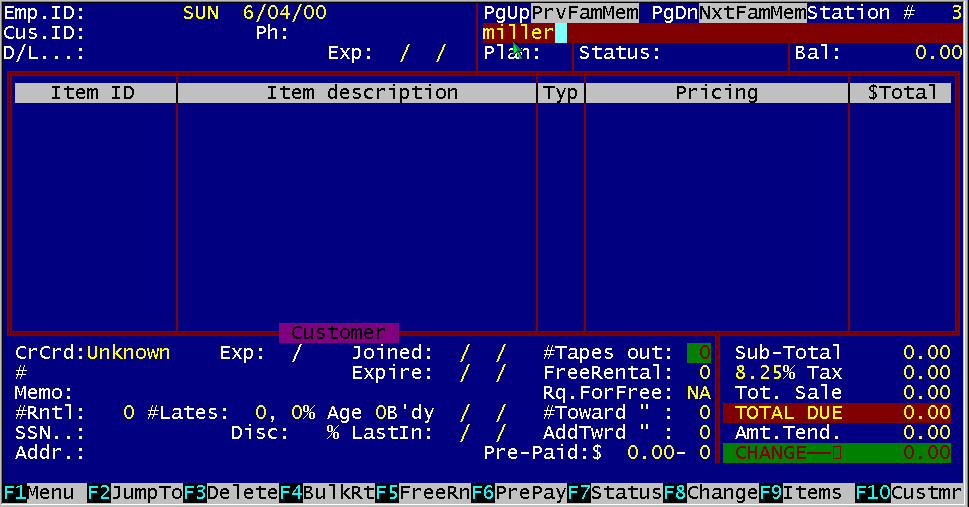
12.2.6 Partial Customer Name Search Figure 12.9 – Entering Partial Customer Name
To select and search for a customer, you may type in as few letters as you wish of the customer's name and then press "Enter". The nearest name matching the spelling will be displayed. This means that if you don't know how to spell the customer's name exactly correct, the closest matching name will be displayed. You may search through the customer names in the file by pressing "Function Key F10" to display the "PopUp" screen as described in the previous pages. To verify the correct customer is being displayed, their telephone number is shown on the top right side of the screen, and the summary data from their file is displayed on the bottom left side of the screen, including their drivers license. When you are satisfied that the correct customer is displayed, press the "Enter" key to lock in the customer. You may now start entering the rental items.
Figure 12.10 POS Rental Item !D
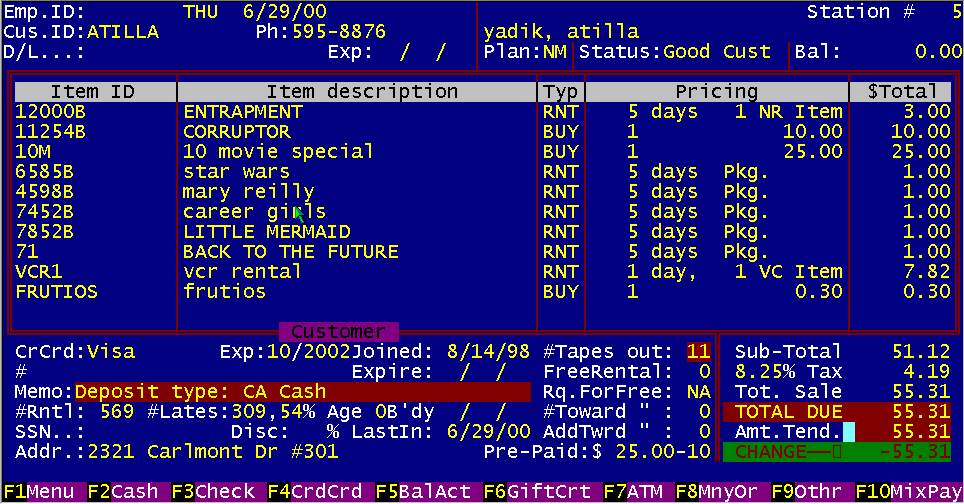
Capability for up to 10 items per receipt are provided. If more items are required for a single transaction, you must complete the first receipt and start a new one. At this point you can enter the rental or sale item ID using the keyboard or the barcode wand for any types of transactions: Rent, Return, Merchandise Sale, Coupon Item, etc. When a rental item ID is entered, BizPie will search the rental inventory file for an exact matching ID. If it finds the correct ID, it will be displayed. If the rental item is not in the rental inventory file, you will see a message saying so. If the item is found, the following information will be automatically displayed on the screen: It's always assumed that a rental item is to be rented when the item ID matches a rental item inventory and the status is "IN". Therefore the status of "RNT' is automatically displayed. If the item found in inventory has a rental status type of "RNT' (rented) under this customer's ID, it's assumed the rental item was out on rental and is being returned, thus the rental item status of "RET' (returned) is automatically displayed on the screen. If the item ID matches a sale merchandise inventory ID, it's assumed the item is to be sold and the "BUY" type transaction is displayed on that line. The system knows the item cannot be rented because it came from the merchandise inventory. If there is no match for the rental item ID entered, a message appears on the bottom line telling you the item was not found in either of the inventory files.
12.2.8 Rental Item Title Search
Figure 12.11 Rental Item Status "PopQp"
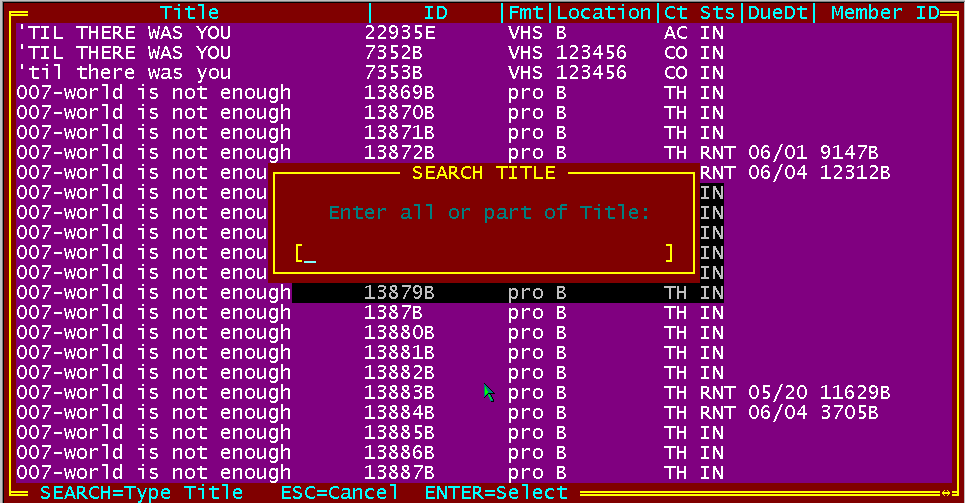
As a convenience for the customers that want to know if a rental item is in stock, you can press "Function Key F9" and a "PopUp" screen will be displayed. Here you can enter the title of a rental item to search for. If you enter a partial title, BizPie will display the next closest title in the rental item inventory. If that is not the one you want, you can search for the correct on by using the "Up/Down Arrow" or the "PgUp/PgDn " keys to scroll through the rental inventory until the correct item is displayed. NOTE: This function will not place the rental item on the POS screen. It's just for information purposes.
Figure 12.12 Package Pricing
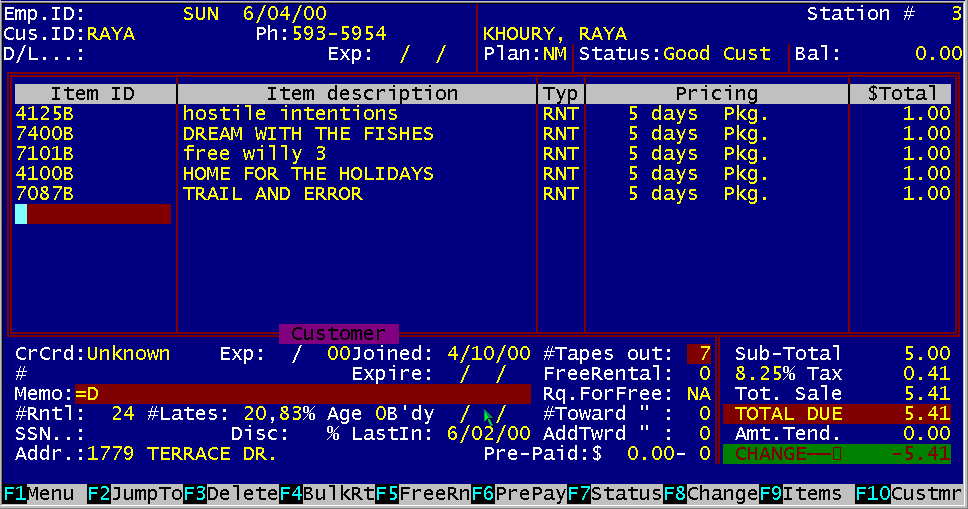
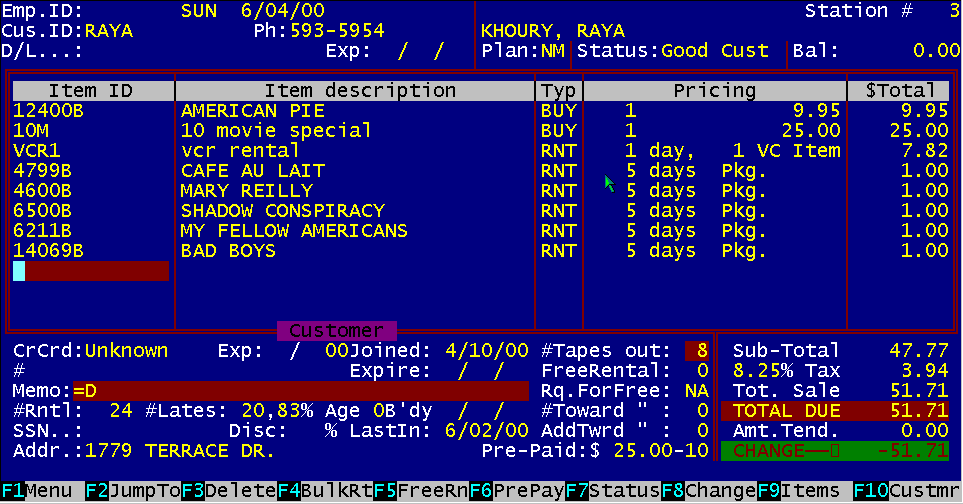
"Package Pricing" permits you to combine ANY rental item into a "Package" deal for rental pricing purposes. Whenever the package price combination of items appear on the POS screen, the price you have setup in the "Package Pricing"; "Lookup Tables" part of BizPie (Ch6) will be triggered, regardless of any other pricing that is setup in the system, The standard pricing will be removed from the POS screen, and the word "Pkg" will appear on every line with the portion of the rental price divided by the amount of items in the package. You may still add any other rental items to this transaction, which will have the normal, standard pricing.
12.2.10 "Quick CheckIn" of Rented Tapes Figure 12.13 CheckIn Tapes Rented by Other Customer
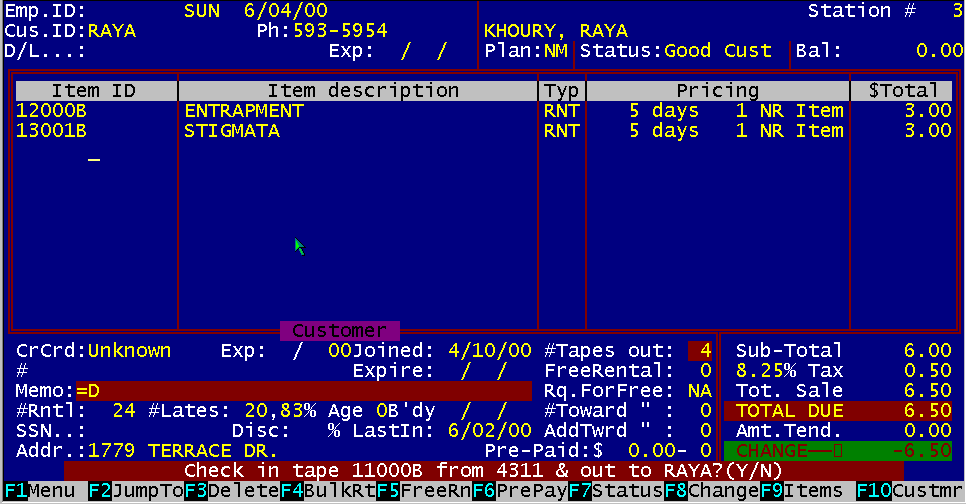
If the displayed customer has selected a tape to rent and that tape has not yet been check in from the previous rental, you will see a message saying so and asking if you want to check in this tape. This may happen because the tape was placed on the shelf (into inventory) without checking it in through the computer. This usually means that this tape must have been rented by another customer. Now you have the option of checking in this tape if you answer "Y". When this tape is checked in to the last customer whom rented it, they will not be charged a late charge. It's assumed that this tape was placed on the shelf into your inventory accidentally, without checking it in through the computer. Therefore, there is no way of determining when this tape was actually returned and the customer will not be charged any late charges. If you answer "N' to automatically check in the tape, the rental item number will not be retrieved and will not display on the screen and will not be checked in. The ability to permit a "Quick CheckIn" may be password protected and assigned an access level.
12.2.11 Rental Item Description Figure 12.14 Rental Item Description
The next field will display the name of the rental item, merchandise item or the appropriate description of the line item type. If a rental item is returned late, BizPie automatically generates a line description of "Late, due…" to indicate the rental item above was returned late. The descriptions are provided by the "Enter/Modify Rental Items" and "Enter/Modify Merchandise Items" section. The "C" (Comment) is the only line item type that you can actually enter a description for in the "Item Description" field on the POS screen. This description will be recorded in the transaction file and will print on the transaction report.
12.2.12 Comment Item Description
Figure 12.15 Comment Item Description
A special rental item ID can be entered and used for many different purposes. This special item ID code is "C" , for "Comment". This code allows you to enter anything completely freeform in the "Item description" field. You may use this to record notes about a transaction, receive a VCR in for repairs and record the model number and serial number on the transaction. When the customer picks up the VCR, you can use the "Comment" line again to record the date it was picked up to track warranty expiration. You may use as many "C"' (comment) lines on a receipt as there are lines available. This information will be recorded in the "Transaction" file if you are collecting "Transaction Details" (see "Store Information").
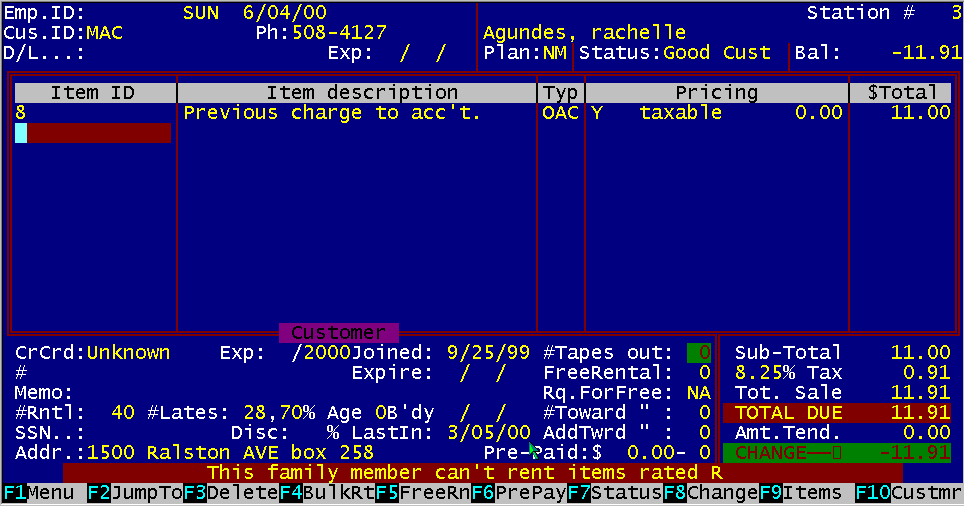
Figure 12.16 Rentals and Late Return with On Account
The "Type" field is used to designate the individual line item type of activity. The setup of some of the options in the "Management Menu, Store Information", will determine what may be done with the line item based on the "Type" of activity. There are nine line item type codes. They are: To use the "Store Coupon" and "Refund/Petty Cash" line items, you must type in the following item numbers codes in the "Item No." field, rather than a rental item number: Typing in any of the above two special "Item Numbers" will display the appropriate description automatically in the "Item Description" field. As soon as the number is entered, the system will place the cursor in the dollar field. You should enter the correct dollar amount.
Figure 12.17 Rental Log Display
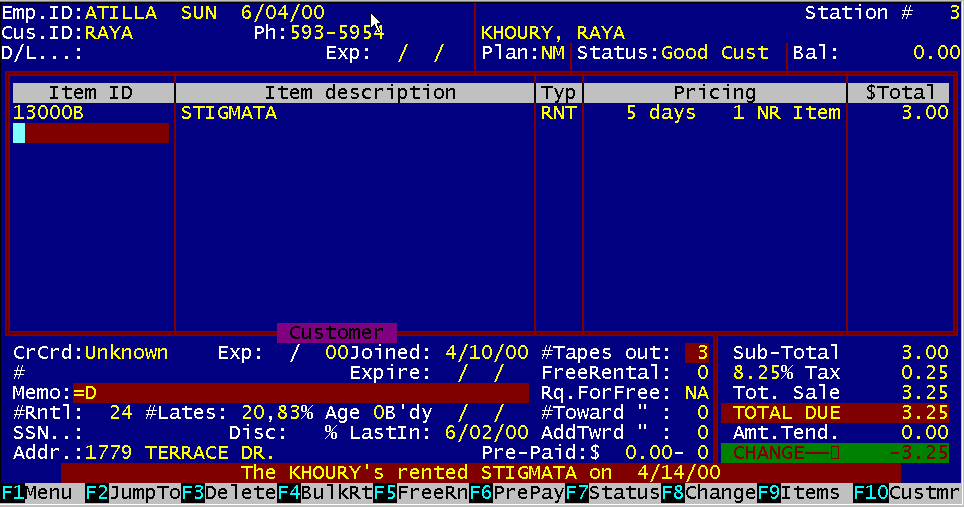
BizPie keeps a record of every tape ever rented by all customers for as long as you want. Whenever a customer rents a title they have seen before, a message on the bottom of the POS screen alerts the employee that this customer has seen the tape before and the date it was rented. At this point you can either tell the customer that the tape was rented before and the date it was rented, or you can choose not to tell the customer. This information storage may be limited by restricting the number of months to retain this "Rental Log" in the "Management Menu"; "Store Informa tion" section. This price is now the 'Actual Sale Price" that will be saved with the transaction. This sold price will also be recorded in this rental item's file and the Rental Item Status will now be changed to SLD. This sold price will print on the customer receipt, exactly as it appears on the screen. If the rental item is not allowed to be sold because it's marked as "Not Saleable" in the "Enter/Modify Rental Items" section, you will see a message saying this rental item cannot be sold. Thus you will not be able to sell this item out of the rental inventory.
Figure 12.18 Change Rental Item to Buy
You may sell items that are placed into the rental inventory. If the customer wanted to buy a rental item from the rental item inventory, you must change the status from RNT to BUY. This can be accomplished by pressing the up arrow key to position the cursor on the line where the item is to be sold. Press "Function Key F8" to position the cursor on the "Type" field. Now you can overtype RNT with the letters BUY and press "Enter". If the rental item is allowed to be sold by being marked as "Saleable" the price will change from the displayed rental price to the "Sale Price" as set up in the Rental Item inventory for this tape. You now have the option of selling the tape at the displayed price, or overtyping the price with the actual sale price you are giving to the customer in the "Pricing" field. The sale price displayed is a combination of the actual price from the "Enter/Modify Rental Item" file and the discount percentage for the customer type as you have set it up in the "Lookup Tables"; "Customer Plans" section. This section allows you to automatically give a particular "Customer Type" a discount percentage off the sale price. If this is the case, the discounted price will be displayed in the "$Total" field on the POS screen. This price is now the "Actual Sale Price" that will be saved with the transaction. This sold price will also be recorded in this rental item's file and the "Rental Item Status" will now be changed to SLD. This sold price will print on the customer receipt, exactly as it appears on the screen. If the rental item is not allowed to be sold because it's marked as "Not saleable" in the "Enter/Modify Rental Items" section, you will see a message saying this rental item cannot be sold. Thus you will not be able to sell this item out of the rental inventory.
Figure 12.19 Merchandise Sale
You may enter any merchandise item either by using the barcode scanner and scanning the items preprinted manufacturers barcode label, or just by typing in the item part number. BizPie will search the merchandise inventory and if the item is found, place it on the POS screen. The sale price will appear in the "Pricing" field and the actual price the customer will pay for the item will appear in the "$Total" field. The actual price reflects any automatic discounts you may have setup for this customer type in the "Lookup Tables"; "Customer Plans" section of BizPie. You may now continue to enter additional rental or sale item numbers. As long as they are in the rental item or merchandise inventory, they will be displayed .
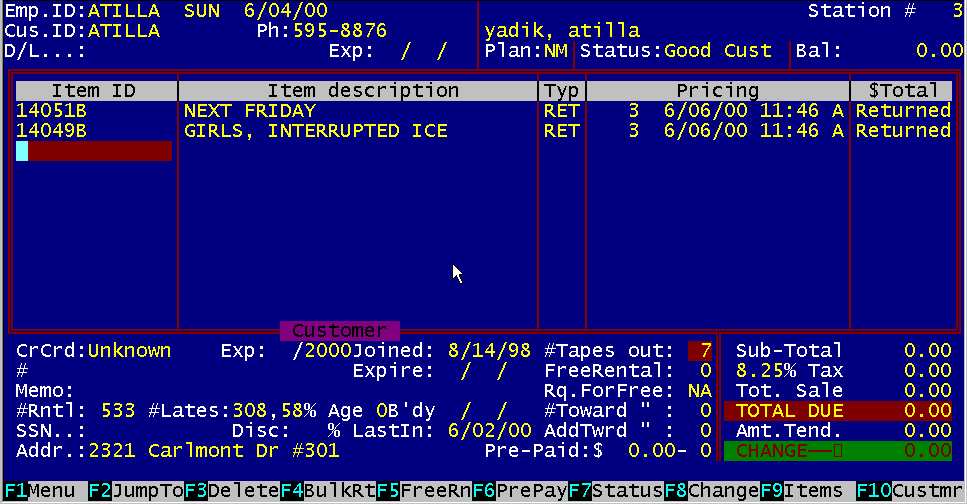
Figure 12.20 Rental Item Return
If a tape was previously rented out, it's assumed the customer is returning the rental item and the computer will place the letters "RET' in the "TYPE" field on the screen to alert you that this tape is being returned. If a customer is not yet selected for this transaction, the customer whom rented this item is also retrieved and is displayed. After the first returned tape is placed on the screen, any additional returned tapes must have the same customer number, or BizPie will tell you that another customer has rented the tape you are attempting to return. Any new tapes entered that are to be rented by this customer will also now have the same customer number as the returned tape. This is because the computer now knows who this customer is. The tape can be deleted from the POS screen by moving the cursor to the line of the tape ID in the "Item No." field by using the up arrow keys and pressing "Function Key F3". With this method of tracking rental tapes, any customer can have any amount of separate rental receipts. They may return only two of four tapes rented and at the same time rent more tapes while still having the others out from the previous transaction. The system keeps track of the total number of tapes out on rental and makes sure the deposit on file is sufficient to cover all of the rental tapes that are out (if a deposit is required). |
|||||||||||||||||||||||||
|
|||||||||||||||||||||||||
|
|||||||||||||||||||||||||
|
|||||||||||||||||||||||||
| [BizPie] [About Us] [Sales Information] [Service] [What's New] [SiteMap] | |||||||||||||||||||||||||
Please contact our Webmaster with questions or comments. |
|||||||||||||||||||||||||