|
|
|
|
|
|
|
|
|
|
|
|||||||||||||||
 |
|||||||||||||||||||||||||
 |
|||||||||||||||||||||||||
|
|||||||||||||||||||||||||
This section allows you to make reservations by customer, by rental item title and by date. Reservations are an easy way to allow your customers to reserve a rental item for a future date. BizPie allows "overbooking" of reservations. Just as the airlines overbook seat reservations, you can overbook rental item reservations. The system will alert you when you have overbooked a rental item, but not prevent you from doing it. When you reserve a rental item for a customer, you are placing them on a waiting list for that item on the date of the reservation. Whenever a rental item they reserved becomes available, they may rent it. There is no reason to prevent overbooking since customers may not pick up reserved rental items. You want to have them available for the next customer on the waiting list.
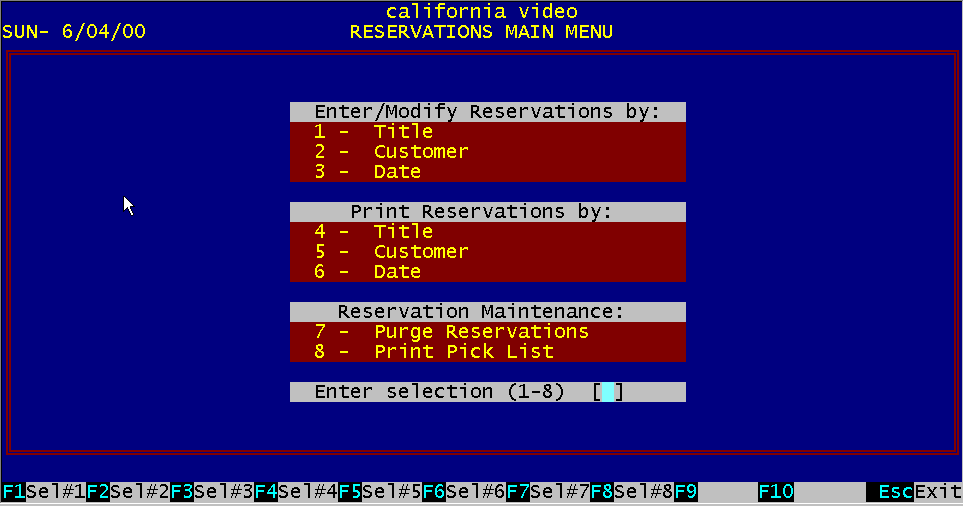
15.2 Enter/Modify Reservations Figure 15.1 Enter/Modify Reservations
The "Enter/Modify Reservations Menu" displays the seven options, to select from. To enter the Reservations section of BizPie, select Main Menu choice number 9 "Enter/Modify Reservations". The Reservations Menu will be displayed. From the Reservations Menu, you will be able to make reservations by selecting the first two menu choices. Menu choice number three will allow you to display and delete previously made reservations by date, but not allow you to make reservations. Menu choice four through six will allow you to print reservations reports on the printer. Menu choice seven will allow you to purge expired reservation
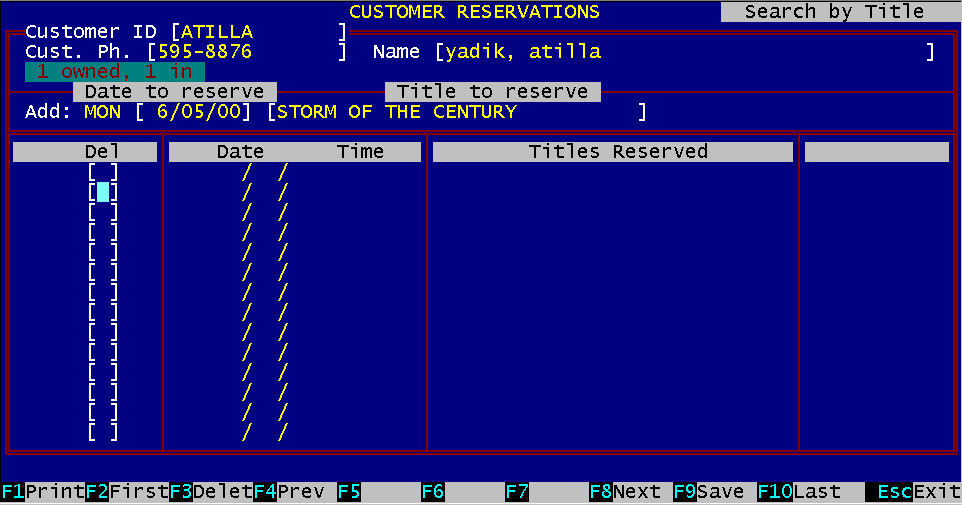
Figure 15.2 Reservations by Customer
The "Enter/Modify Reservations by Customer" section allows you to make rental item reservations by customer. You can use either the customer ID number or the customer name to select the customer to make a reservation for. When the correct customer is displayed, press "Enter" to move to the date field. Enter the date the rental item is to be reserved for and then enter the title of the rental item to be reserved. At this point, BizPie checks to see if there is a valid rental item with that title. If there is, it will be placed into the "View Current Reservations" section. If this title has more reservations than copies available, a warning message appears telling you so. The screen can display only fourteen reservations. You may make more reservations than the screen will display. You will not be able to view them on the screen, but the reports will show all reservations. You may print all reservations outstanding for this customer by pressing "Function Key Fl". Any reservation can be deleted by moving to the appropriate line and typing "Y" into the delete field.
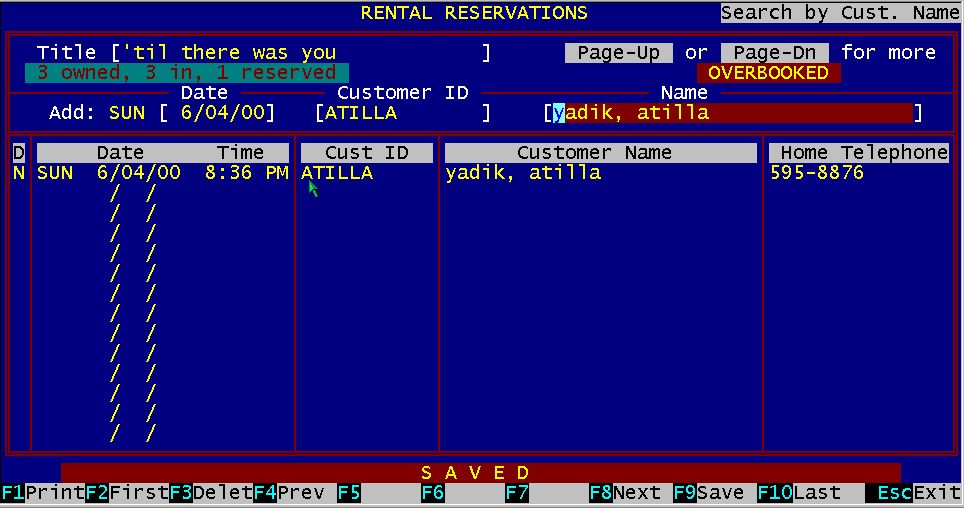
Figure 15.3 Reservations by Title
The "Enter/Modify Reservations by Title" section allows Vol to make reservations by customer. Enter the rental item wanted to be reserved. If the item does not exists, a message will tell you so. If the item is in inventory, it will be displayed. Enter the date this item is to be reserved for. Then enter the name of the customer who is reserving this rental item. The screen can display only fourteen customers. You may make more reservations than the screen will display. You will not be able to view them on the screen, but the reports will show all reservations. You may print all reservations outstanding for this title by press ing "Function Key Fl". Any reservation can be deleted by moving to the appropriate line and typing "Y" into the delete field.
15.5 Display/Delete Reservations
Figure 15.4 Display/Delete Reservations
The "Display/Delete Reservations " section allows you to display and delete reservations by rental item and customer. Entering the date of reservations to be displayed. The title o the rental item, the customer ID, customer name and the customer home telephone number are displayed. Any reservation can be deleted by moving to the appropriate line and typing "Y" into the delete field. |
|||||||||||||||||||||||||
|
|||||||||||||||||||||||||
|
|||||||||||||||||||||||||
|
|||||||||||||||||||||||||
| [BizPie] [About Us] [Sales Information] [Service] [What's New] [SiteMap] | |||||||||||||||||||||||||
Please contact our Webmaster with questions or comments. |
|||||||||||||||||||||||||