|
|
|
|
|
|
|
|
|
|
|
|||||||||||||||||||||||||||||||||||||||||||||||||||||||||||||||||||||||||||||
 |
|||||||||||||||||||||||||||||||||||||||||||||||||||||||||||||||||||||||||||||||||||||||
 |
|||||||||||||||||||||||||||||||||||||||||||||||||||||||||||||||||||||||||||||||||||||||
|
|||||||||||||||||||||||||||||||||||||||||||||||||||||||||||||||||||||||||||||||||||||||
Lookup Tables are a powerful tool in BizPie for the video store owner. It is a way of entering important data into the BizPie system once which will be used throughout the system. Earlier we mentioned that a computer requires exact and consistent
information if it is going to be accurate in performing its job. Lookup Tables are a way of assuring that the computer gets this exact and consistent data to use. It is
especially important for you to understand what Lookup Tables are and how they work. Once you do, you can set up BizPie and not have to worry about any of the details of data entry for rental
items, customers, merchandise, rental pricing, special sales, etc. You will not have to worry if the clerks are providing the correct pricing schedule for your new releases,
charging the correct rental fees, collecting the appropriate late fees, etc. All of this key information is preset into Lookup Tables, which are used throughout the system to
maintain consistency and accuracy. Information setup here will be used in the Point of Sale, Rental Inventory, Merchandise Inventory, Customer Maintenance and Barcode Printing
sections. This is the only section of the BizPie system where these Lookup Tables can be entered. Select "Management Menu" choice number 10 from the
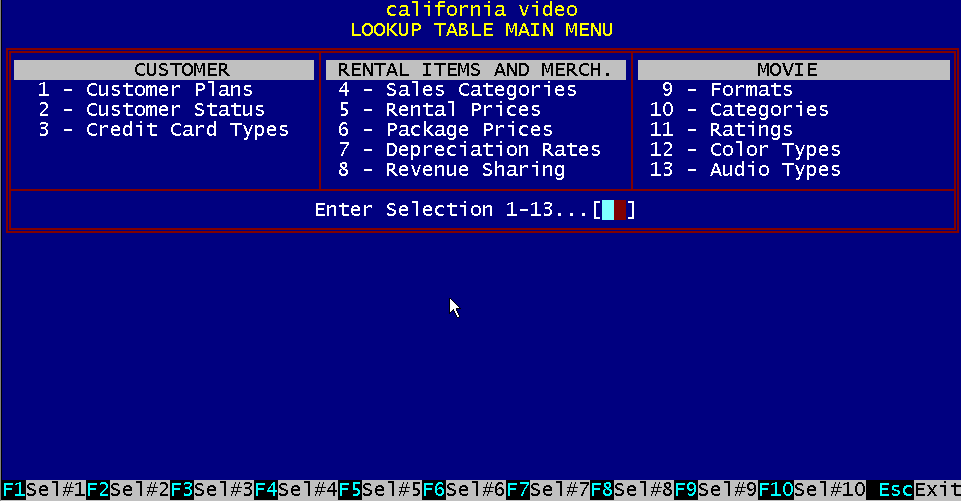
"Main Menu". In the "Management Menu", select "Enter/Modify Lookup Tables", choice number 1. This displays the Lookup Table Menu where you will choose one
of Lookup Tables to work with. The Lookup Table information is used throughout the system. Some of the Lookup Tables data are required fields in certain areas of the program,
therefore you cannot proceed without entering the correct information. The BizPie program uses a set of look up tables to define how things are arranged and classified. While
these look up tables may take some time to get used to, you will find that they are very valuable in tailoring the program to meet your needs. Take the time to fill out the look up table
forms in this chapter. It will save you time when you enter the information into the system. When you first start using the program, you will find that the look up tables are
not empty. They are filled in with a set of tables that we will call the "default" set. The set was chosen for three reasons. First, the set was chosen to meet
the most common needs of a modern video store. Second, they were chosen so that you would have a starting point to help you fill out your tables. Finally, if you need to get the program
running as soon as possible, you may choose to skip this section and use the table codes that we have chosen for you. It is suggested that you look over the list in the following
pages and if you do not want to add to the list, you use it as is. Should you find that you want to add to the lists in the future, it is easy to do by following the directions. Should
you find something missing from the default list that is important to you, add it to the list at this time. NOTE: Once you have entered a Lookup Table Code into BizPie, you can
either deactivate/reactivate it, or you can delete it completely using the F3 Function Key.
As an example of the power of the Lookup Tables, we will show its use by defining tape classifications. There are many types of classifications for movies, such as
"Western", "Adventure"; etc. BizPie provides you with a set of common classifications. Other systems may limit the classifications to a maximum of twenty
different types to choose from, but there might be classifications they have not thought of which you would need. With BizPie, if these predefined classifications are not enough, you can add
more. This artificial limit has been eliminated by the use of Lookup Tables. Most of these Lookup Tables use a two character code with a ten character description. Since
you can combine numbers and letters in the code field, 36 x 36 different classifications can be entered, for a total of 1,296 different classifications! There are at least two
fields to enter data into for every Lookup Table entry. The first field is two characters long and it's used as the actual code. This field can be any letter or number combination. The second is a description of the code up to ten characters long. It is used as a reference to make the code more meaningful. It is always easier to enter just
two characters, rather than trying to remember every Lookup Table description and having to spell it out correctly every time it's used. The system also checks every two character code in
other data entry sections of The BizPie to make sure it is a valid Lookup Table. The Lookup Table sections are required by different parts of BizPie. These Lookup Tables have
a critical effect on the operation of the rest of the system, therefore considerable thought should go into defining them.
Figure 6.1 Main Menu
Lookup Table codes are a shorthand way of describing many things in BizPie that would normally be
quite tedious. For example, if you had to remember exact names, and spelling of these names, every
time you described a movie classification, it would take more time to enter tapes in the system and inaccuracies would make it unreliable.
Another example is the rental pricing structure of your tape inventory. Can you imagine having to go
through hundreds of rental tapes to change its pricing when they are no longer considered to be new releases?
With BizPie's Lookup Tables, all you have to do is change the price code and now all the new releases become regular rental prices.
To illustrate the power of Lookup Table codes, we'll use a few common examples. Movie categories can be typically described by dozens of different types. Some of them are
Adventure, Drama, Comedy, etc. If we try to categorize a newly received movie, we have to make sure the computer knows exactly what we tell it.
This need to be consistent is required for reporting, so when we ask the computer to list all tapes with
the classification of 'Adventure", it can do so by scanning the whole inventory and printing only tapes with that classification.
The following scenario describes how most other computer systems work without the use of "Lookup Tables".
Suppose we want to add three new tapes to our rental inventory and all three tapes have the classification of 'Adventure".
We type in 'Adventure" for one tape, 'Advent" for the second, and 'Adventure' for the third. Because
all three classifications are spelled different, the computer does not know that we meant to have all three tapes be the same classification.
Now we want to list all our tapes with the classification of 'Adventure". When the system searches for
this classification, it will bypass the tapes with 'Advent" and 'Adventure' since they are not spelled the
same. Therefore we'll think it is not in stock. The computer can only select tapes with the exact match that was supplied.
With BizPie system we assign a two character code to every classification. An example would be
where the classification 'Adventure" will be assigned the code 'AD". To make this code meaningful, you
can include a ten character description of what this code means by entering 'Adventure" in the description field.
Now every time we need to assign a classification of 'Adventure" to a particular tape, we just enter
'AD" into the classification code field. The system will search the Lookup Table we created earlier, and will display the description 'Adventure".
If you can't remember all the codes, you can search through all the Lookup Table codes and display the code descriptions until you find the correct one to use.
To search through the table, press function key F4 to go backward and F8 to go forward through the tables.
This method allows simple coding scheme without having to remember the correct and exact spelling of many different classifications.
Therefore, if we want to print a report by selecting all tapes with the classification of Adventure, you
just ask it to print all tapes with the code of "AD". The report knows that all tapes with 'AD" as a code
are really called Adventure and will print the word 'Adventure" on the report, instead of the code "AD".
The Lookup Table system provides a simple solution to the problem of consistent data entry without having to memorize dozens of different classifications.
The Lookup Table allows you to consistently describe a tape with the same class by assigning a two character code for a specific type.
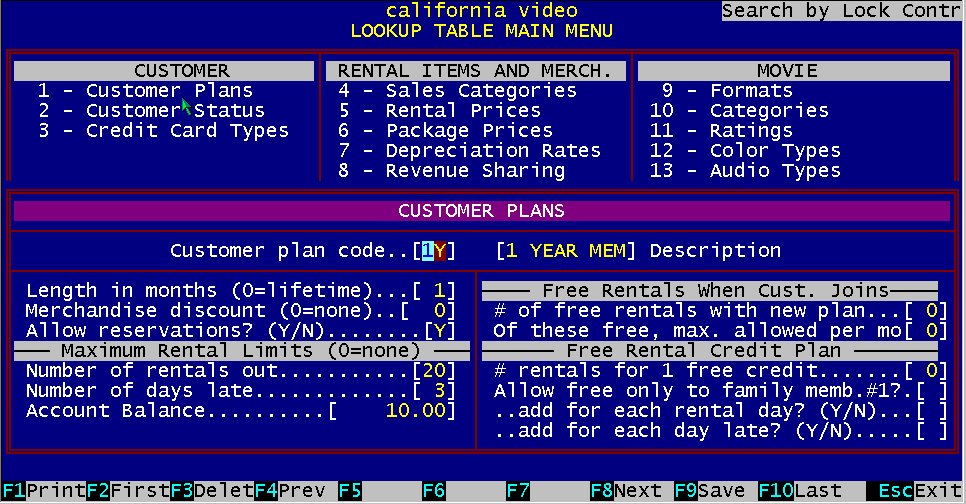
Figure 6.2 Customer Plans # 1
The "Customer Plan Lookup Table" is used to define all of the different customer plans that you have available.
This "Customer Plan Lookup Table" is used in conjunction with the "Rental Price Lookup Table" (see
6.7.1) to determine the rental price for a particular customer renting a particular tape. Therefore you can have different pricing schemes for all your customer types.
These pricing schedules will be automatically used at the Point OfSale section of BizPie. Since there are
two positions for the type code and this code can be either numbers or letters, there is a possible combination of 1296 different customer plans that may be implemented.
This lookup table is where you assign different benefits and options to each of the membership types that are offered by your store.
Whether your customers are members or not, they MUST be assigned a code to be able to rent tapes.
The "Customer Plan" code can be any two characters. The plan description is used to describe the code. The description is only used to make the code meaningful to you.
The "Length in Months" field is used to indicate the months of membership in effect for this code. This field is used to calculate membership expiration dates!
The "Length in Months" field is also displayed in the individual customer's file, and can be changed on a member by member basis.
6.3.2 Merchandise Purchase Discount You may assign a discount percentage for purchase of merchandise applied to an individual customer plan code type. This discount will be automatically deducted from the POS line "Total Amount" for any merchandise you mark as "Discountable" in the "Enter/Modify Merchandise" section.
The 'Allow Reservations" field is used to indicate to the system if you allow this customer plan type to reserve rental items.
The "Number of Rental Out" field is used to limit the number of rentable items a particular customer type is allowed to have out at the same time.
BizPie checks this number every time a customer of this type rents an item. If the limit is exceeded, this customer type will not be able to rent the excess amount.
This number is accumulated for all separate transactions this customer may have outstanding. Therefore
if the customer rents two tapes one day and three tapes the next without returning the previously rented two,
BizPie will know that there is a total of five tapes out. If you have the limit set to five and this same
customer wants to rent one more, BizPie will not allow it. If any other family member rents tapes under the same membership, it will also accumulate towards this limit.
The "Number of Days Late" field prevent a customer from renting any tapes if there are existing tapes out on rental and they are late beyond the number of days set here.
The 'Account Balance" field prevents a customer from renting anymore tapes if the amount of money owed is more than the number entered here.
6.3.7 Free Rental Credits with Plan Purchase You may assign a certain number of free rentals to credit the customer as part of the purchase if you offer a quantity of free rentals when a customer purchases a rental plan. If you do not offer free rentals with this type of plan code, leave this number zero.
6.3.8 Number of Free Rentals per Month The use of the "Free Rentals Credits With Plan Purchase" (see above) can have the quantity of free tapes to be taken each month be restricted to a fixed number you designate in this field. This limit can be up to the quantity you have given them above.
6.3.9 Number of Rentals Required for 1 Free This field is a counter which will credit a customer with a free tape if they have the appropriate number of rentals accumulated since the last time they were credited with a free rental.
By placing a number into this field, you are telling BizPie how many rental items must this customer have
in order to be qualified to receive one free rental. If the number in this field is zero, this option in not offered for this particular customer type.
This free tape is credited to the individual customer by incrementing the current free count available in
their individual record. When a free tape is credited to the customer, this accumulator is zeroed out to start the new count.
BizPie does not count the free tape given, toward the accumulation of the next free tape count.
6.3.10 Add For Each Rental Day If you enter [YJ, the customer will be given one credit towards the next free tape for every day the rental item is out.
If you enter [Y], the customer will be given one credit towards the next free tape for every day the rental item is late when it is returned. Credit is not accumulated until the tape is returned.
6.3.12 Use of Customer Plan Lookup Table Codes The "Customer Plan Lookup Table" code is used with the "Rental Item Price" (see p.22) and "Enter/Modify Customer Information" (see ch.8, p.5) sections.
The codes assigned here are used in each customer's record to tell BizPie what type of customer plan
each customer has and used in the "Rental Item Price" section, to create separate pricing groups for the
same types of tapes, based on this customer plan type. This Lookup Table is examined whenever a customer rents a tape.
All the information you have entered into this section is compared with the existing data in the customer files and the current rental or sale items on the POS screen.
If there are any exceptions to the specifications you have placed into this lookup table code, it will be appropriately acted upon by BizPie.
The following page shows some of the typical customer plan examples for a video tape rental store.
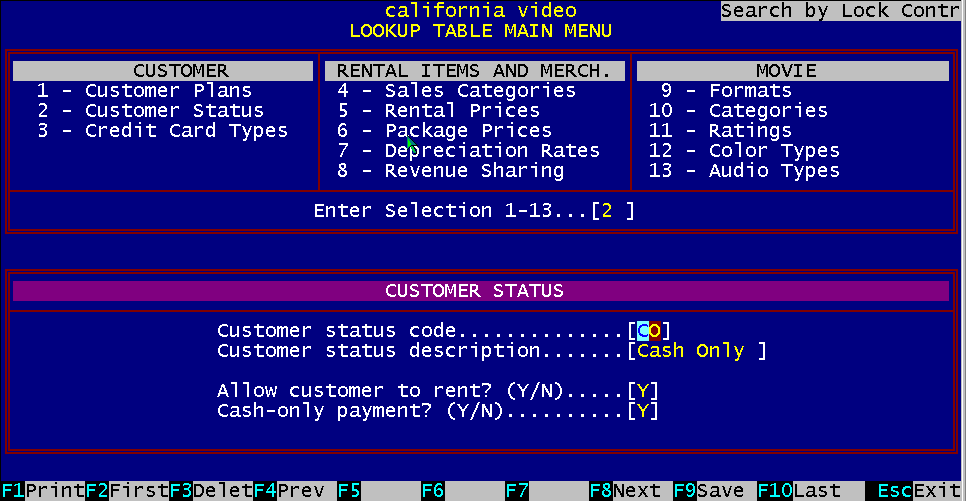
Figure 6.3 Customer Status #2
BizPie allows you to classify customers and predetermine how they are to be treated.
All customers in the customer file are given a code to define the type of customers they are. These codes can be changed any time. You define the codes and determine the action to be taken. The "Customer Status" Lookup Table gives you the ability to make decisions about your customers on
an individual basis. You can enter information about customers who bounce checks, damage tapes, etc.
"Customer Status" code "DR", "Deposit Required' is a special code BizPie has to designate a customer plan type that must leave a cash deposit when renting tapes. The "DR"1 customer types are required to leave a dSposit amount you have setup in the "Enter/Modify
Rental Items" section for each rental item field called "Rental deposit". This dollar amount will be automatically added to the total of the transaction.
The deposit collected is kept in a separate holding area for your store totals (see ch.17, p.7, EndofDay
processing). This amount is not counted as revenue. Thus when the customer returns the rental item,
the deposit they have given you will be returned on the POS screen automatically, and the rental charges and late fees can be deducted from this amount and the balance returned to the customer. Allow Customer to Rent? (Y/N)
Figure 6.4 "Don't allow to rent" Customer Status
The system will alert and can prevent the clerk from renting tapes to this customer based on the
customer status you setup. The "Customer Status" code can be changed in the customer status field of
the "Enter/Modify Customer Information" section. BizPie purposely does not automatically prevent the
clerk from renting to a customer, unless you specifically indicate it. To prevent a customer from renting a tape, place a "Y" into this field.
A customer who cannot rent can still return tapes and purchase merchandise items
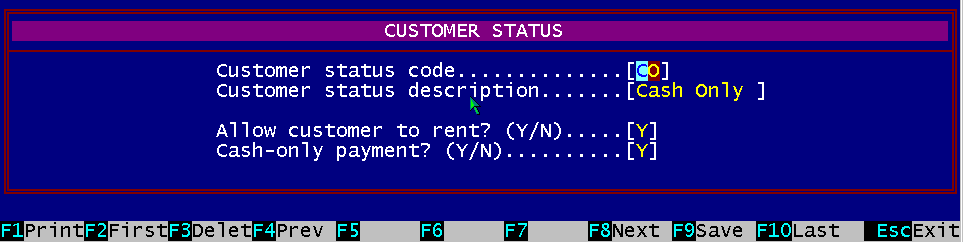
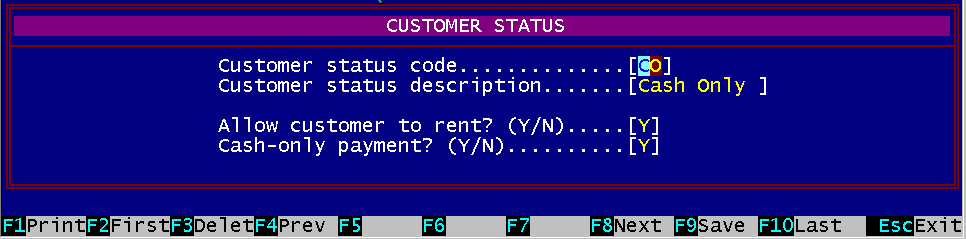
Figure 6.5 "Cash Only" Customer Status If you want to take only cash from certain customers, you can setup any lookup table code to force the clerk to take only cash from the customer.
If the clerk selects any other method of payment, an error message flashes on the bottom of the POS screen and a warning beep will sound.
6.4.3 Customer Status Examples The following table shows some of the typical customer status examples for a video tape rental store.
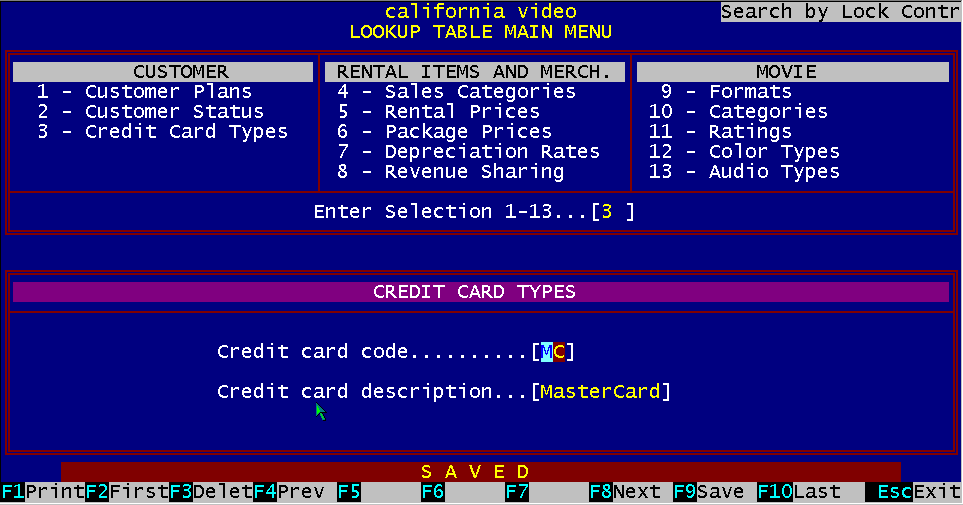
Figure 6.6 – Credit Card Types - #3
The "Credit Card Type" Lookup Table is used to setup the type of credit cards which will be accepted
by BizPie in the "Enter/Modify Customer" section when you fill in the customer's credit card data.
Entering a code that resembles the name of the credit card will help in its use during POS transaction time.
The "Credit Card" type Lookup Table limits the system to accepting only the type of credit cards you
enter here. For example, if you accept only Master Card and VISA, the system won't let you enter American Express, Diners Club, etc.
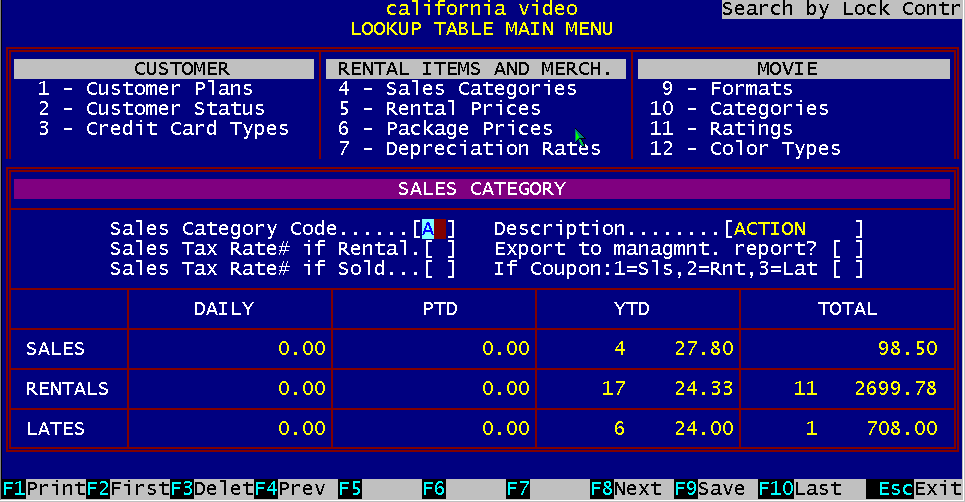
Figure 6.7 Sales Category #4
Sales Categories are used to accumulate financial sales information about a group of items either for
rent or for sale. The categories are saved as daily, monthly yearly and historical. The sales categories
are used mainly in the EndOfDay and EndOf-Month reports section. Selecting the "Lookup Table
Main Menu" choice #4 will display the "Sales Category Lookup Table" entry screen. You can enter a
different sales category for any of the sale merchandise items or video tapes you have in inventory.
Sales categories are used to track rental tape and sale merchandise items by sales groups. You may
want to isolate how a certain item is performing by sales category. Sales categories apply to rental
items and to merchandise items. They can be considered as "departments" in the system.
As an example of a sales category, you could assign a two letter code to blank tapes sold individually
as "Bl", and described as "Blank Ind", you could assign a case of ten blank tapes as "BC', to represent
"Blank Case", you could assign "RT' to represent your "Rental Tape", or "NR" to designate a "New Release", etc.
As in the example above, rental tapes are sales category "RT". If you want to further refine your rental
tape sales category, you may use "RT" for standard rental tapes, "NR" for new release tapes etc., with as many categories (up to 1296) as you wish.
With these two categories (or more), you may now generate reports to see how your sales or rentals
were for standard rental tape (RT) and for new release tapes (NR). Once the new release tapes are no
longer new, you may recategorize them in the "Enter/Modify Rental Items" section of BizPie, and they will now be part of the normal rental inventory (RT).
This Lookup Table is used in the "Enter/Modify Rental Items" and "Enter/Modify Merchandise" portion
of The BizPie to describe the sales category you assign to each individual sales or rental item.
Sales Categories are used to classify and report the daily sales dollars in the POS section.
When the cash register totals are cleared at the end of the shift, these sales categories will show the accumulated sales on the shift by sales category.
6.6.1 Sales Category Description Sales Category Code: Two letter or number code to designate the actual sales category. Sales Category description: Ten character freeform field to describe the code. Sales Tax Rate: The Store Information setup screen (Pg.l) in the Management Menu allows you to have up to five different sales tax rates (# 1#S). These rates can be attached to any sales category. There is also a differentiation between sales tax for rental items and sales tax for sold items (sale of rental items are considered as sold items). If your area has a different sales tax for rentals than for sales, this is the filed to indicate which sales tax will be used. If you leave these blank, the default sales tax is rate # 1. Sales Tax Rate If Rental: If a rental item is on the PointOfSale screen, which sales tax rate to use for that rental item line. Sales Tax Rate If Sold: If a merchandise item or a rental item that is sold, is on the PointOfSale screen, which sales tax rate to use for that sold item. Port to Management Reports: BizPie can export the financial information from selected Sales Categories to be used with the BizPie Management Module. Marking this field with a "Y", will export this category. If Coupon:1= Sales, 2 =Rental, 3 = Late: BizPie can setup Merchandise Items to be used as discount coupons. Rather than use the general invoice discount, you can create specific discounts with fixed prices to be used. As an example you could have a newspaper discount coupon for $1.00 off if you rent 3 movies. If you create a merchandise items called "Dollar off coupon", enter a 1.00 for the price of this merchandise item. The create and assign a sales category code to it and then use this field to designate that this sales category discount coupon is a "Rnt" (rental) coupon. Then, when you export this sales category code to the Management Module, the reporting system will apply the negative dollar values of these codes to the actual revenue generated as reported in the EndOfDay and the EndOf-Month reports for rentals and sales. To use this field, enter a number 1, 2 or 3 to indicate if this sales category code is to be applied to a Sale (1), a Rental (2) or a Late Fee (3). The above example would have this code applied to a rental, therefore you would enter a number 2.
The next section shows some of the typical sales category examples for a video tape rental store.
Figure 6.8 Rental Item Prices #5
S electing "Lookup Table Main Menu", choice #5, will allow you to assign a "Rental Item Price" code to a group of rental items associated with the "Customer Plan". Each group of rental items can then be priced differently, according to the customer plan set up previously.Depending on the "Store Setup" option, (Page 1 of 6), there are three methods of pricing using this Lookup Table:
Calculate and charge rental fees when the customer takes the item. Calculate rental fees when the customer takes the item and collect the rental fees when the customer
returns the item. Calculate and charge rental fees when the customer returns the item (every day is a rental day).
The first case is where the rental items are paid for in advance. There is a fixed number of days the
customer rents and pays for the items. If the items are returned late, there is a late charge which the customer must pay for each day the items are late. The second case is where the rental price is calculated when the tapes are rented, and the customer pays for them when they are returned. There is a late fee involved, since the number of days items are rented for is determined at the time of rental. The third case is where the rental price for the item is calculated and paid for when they are returned.
Therefore, there are no late charges. Each day an item is out on rental is considered a rental day.
There is usually a maximum amount of days an item is permitted to be rented for. If this time is exceeded, the customer forfeits their deposits and takes ownership of the item.
In all of the three rental methods, the customer may have an open account. If there is not enough
money collected at the time of rental, the customer may place the short amount (or all) on account.
When this customer returns the rental item, the system will place the previous amount placed on account
on the POS screen, reminding the customer of the amount owed. If at this point the customer still cannot pay for the rental, the dollar amount may be kept on account.
If during "Store Information" setup ("Management Menu" choice #3, "Enter/Modify Store Information")
you chose to use the first or second scheme, you will see the rental item price grid of 7 days and 7 tapes.
If you chose to use the third method only the first column of this grid, 1 day and up to 7 tapes are displayed and used. Thus each day following the rental day is at the same price. Rental item prices will be determined by: Number of days an item is rented for Number of items rented
"Customer Plan" type Day of the week selected to be in effect
These codes are used to select rental prices that a customer pays for at POS checkout time, for every
item in the rental inventory. The displayed item rental prices on the POS screen are dependent on the
"Rental Item Price" code as setup here, associated with the "Customer Plan" code.
Figure 6.9 Rental Item Pricing
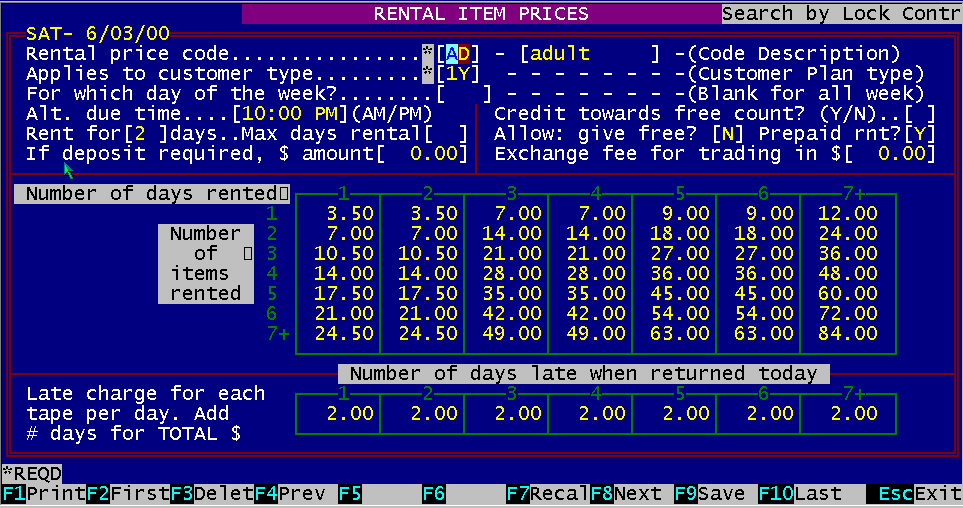
The "Rental Item Price" code created here is entered into the "Rental Price" field on screen page # 1 in
the "Enter/Modify" Rental Items" section of BizPie for every rental item in the system. The "Rental Price" code is a required field for every rental item. This "Rental Item Price" code tell the POS part of the system what amount to charge for the rental items.
6.7.2 Applies to Customer Type When you create a new "Rental Item Price" code, you must enter the "Customer Plan Code". This is the one you have previously setup, where you setup the type of member, nonmember, lifetime member, etc. customers.
BizPie provides a special type of customer plan which is called a "Deposit Required" type customer.
The special code used is "DR" for this type of customer. This code is not setup in the "Enter/Modify
Customer Plans" section, it's a special code, already in BizPie. For every type of "Rental Item Price
Codes" you have setup, you MUST setup a "DR" type customer if you allow rentals without having the customer's name on file.
These are customers who do not want to leave their names in the computer, but still want to be able to
rent tapes. This customer type could be setup to leave a cash deposit to be able to rent tapes. "DR" Ian a customers are NOT the same as customers you designate as "DR" status =e customers whose names are on file. These DR" status tyke customers do have their names in the computer and are able to rent tapes with or without leaving a cash deposit.
If you leave the "Day of the Week" field blank, the system will automatically apply the "Rental Item Price/Customer Plan" combination to all seven days of the week. If the "Day of the Week" field has an entry, it will override the blank pricing, not replace it, for that day only.It will apply this combination to the day of the week entered in this field (MONSUN) and will have this set of prices in effect automatically only on that day! After that day passes, it will use the next day's pricing grid, if there is any, otherwise it will use the blank day's grid Thus, with this threeway combination, you can setup a different pricing scheme for the same "Rental Item/Customer Plan" combination for every day of the week. This combination will be applied to only these specific customer types during a POS transaction.
If you decide to vary the due time for any of the rental items, you may enter an alternate due time in this field. If an item is returned after this due time, the system will charge the late charges designated. This due time overrides the due time setup in the "Enter/Modify Store Information" section, only for this code. The due time grace period is now added to this alternate due time, rather than the default due time.
This number will automatically place the correct days of rental on the Point of Sale screen at rental time. This number can be changed on the Point of Sale screen by either entering the same rental ID number again to increase the rental day by one each time it's entered, or by pressing function key F8 and typing in the desired days out to rent.
6.7.6 Maximum Number of Days to Rent This number limits the maximum number of days a rental item can be rented out at the POS screen at rental time. Obviously, the customer can keep the rental item for more days than set here since the item will be in his possession already. This field just prevents the employees from renting it out for more than the specified number of days.
If this field is blank, there will not be a deposit required to rent it. If there is a dollar amount, that amount will automatically be required to be paid by the customer before the transaction is completed. When the deposit amount is asked, the employee will have the option to select the method of payment for the deposit, which can be different than the method of payment for the transaction.
6.7.8 Credit Towards Free Count If you want to add one to the free tape accumulator for the customer who is renting this particular "Rental Price Code" and "Customer Type" combination, enter a "Y". If you do not want to credit a free tape to the customer for this combination, enter a "N". (Example: $ .99 tapes)
6.7.9 Allow To Be Given As Free? (Y/N) Certain rental items may not be permitted to be given as a free rental, such as camcorders, VCR's or new releases. If you answer "N' to this question, the item with this code will not be allowed to be give as a free rental.
6.7.10 Allow PrePaid Rental Use? (Y/N) You may want to exclude certain rental items from being paid by the prepaid credits a customer may have in their account. An example is a VCR rental, or a Nintendo machine rental.
6.7.11 More Than 7 Days or 7 Rental Items If a customer keeps a rental item beyond seven days or seven items, the last pricing break (7th) is used to calculate the 8th day price by dividing the 7th day price by 7, and adding the result to the 7th day price, thus creating the 8th day price. If the customer rents it for 9 days, it will take this same result and add it to the 9th day.
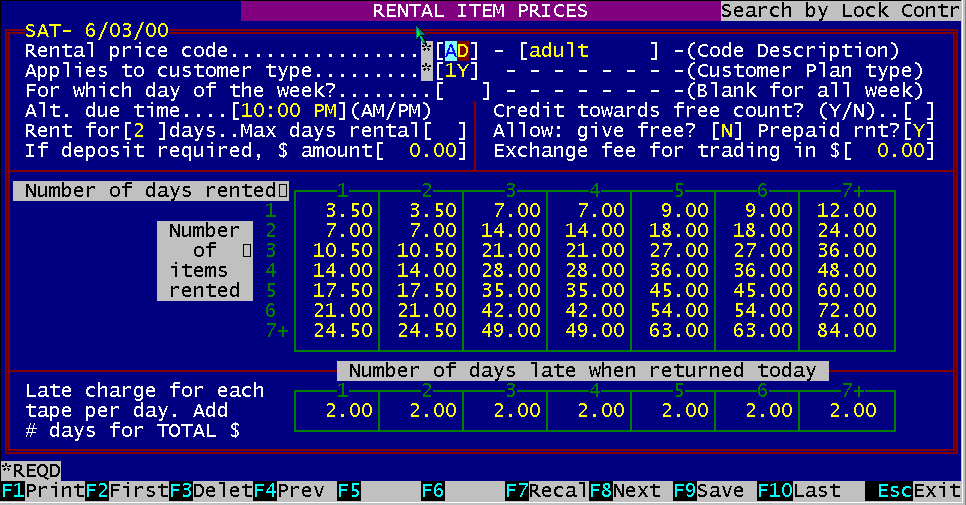
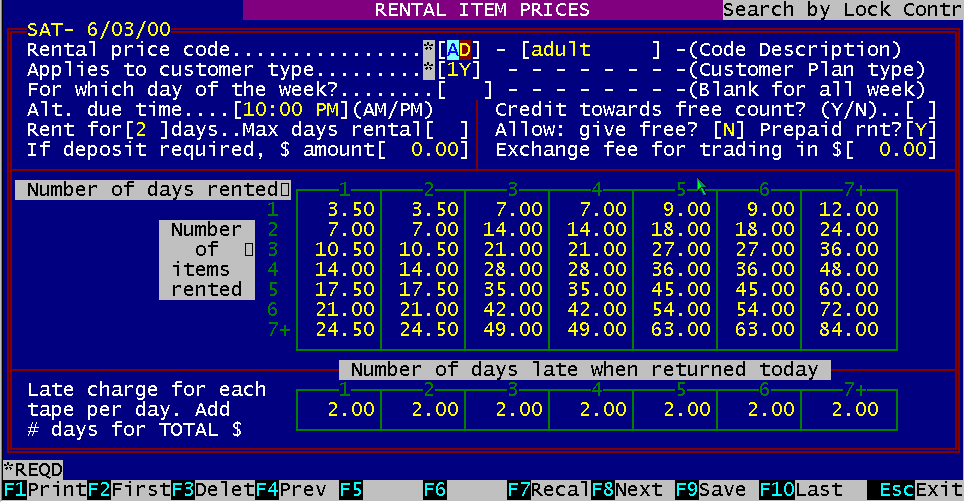
Late charges are based on the number of days late when rental items are returned. The dollar amount to be charged per tape per day is entered in the late charge field for the rental price code. Late charge calculations are performed differently than rental item price calculations. Figure 6.10 Rental Item Pricing, Late Charges
Rental Item Prices #5
The example in Figure 6.10 has $2.00 late charge in all six fields. This has the effect of calculating a
$2.00 late fee for the first day, a $2.00 late fee for the second day, and $2.00 charge for each additional days late when an AD tape is RETURNED by Y1 type customer on Monday. As an
example, if the tape is returned 3 days late, the total charge will be $6.00 (2.00 + 2.00 + 2.00). This method allows you to vary the late charges according to how many days late the tape is.
In the example in Figure 6.10, suppose the day of the week in effect is Monday. This means that if a
customer RETURNS the tape on Monday and they are two days late, they must have rented it on the
previous Thursday. It was due back Saturday (2 day rental), and was returned Monday, therefore two days late.
When the number of days late is two, BizPie will look in the first and second columns (2 days late) and
add the numbers to get the late charge you entered. Therefore the late charge will be $2.00.
Suppose another tape was returned on Monday and it was five days late. It must have been rented the
previous Monday, due to be returned Wednesday (2 day rental), but was returned five days late on Monday. When the number of days late is five, BizPie will As you can see, the late charges are calculated by "looking backwards" in time and adding each column together to come up with the total late charge.
6.7.12.1 Rental Pricing Example
Figure 6.11 – Rental Pricing Example 1
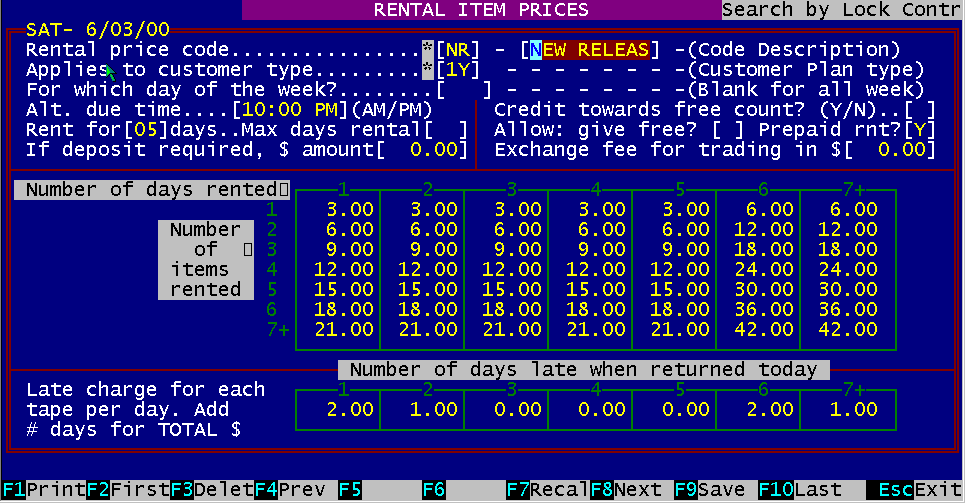
We want to allow our customers with One Year Membership (1Y) to rent all New Release (NR) at a
different price from nonmembers all week. We also want this tape to be returned before 10:00 P.M., rather than the normal return time of 11:00 P.M. (store closing time).
Therefore we create a pricing table for this combination as follows:
This combination of "Rental Item Price/Customer Type" code is used to determine the amount of money to be paid for the rental tape when:
This "Rental Item Price/Customer Type" code combination is used to determine the amount of money to
be paid for the rental item when a Lifetime (LT) customer rents a tape you classified as New Release (NR) for the whole week. NOTE:
If the day of the week is blank, the price code table will be in effect for all seven days of the week. If
there is a price code with a day of the week entered, such as Monday, it will override the blank price
code only on Monday. The pricing for the other days (Tuesday through Sunday) will be automatically used after Monday.
6.7.12.2
Rental Pricing Example 2
Figure 6.12 Rental Item Pricing Example 2
6.7.12.3
Rental Pricing Example 3
Figure 6.13 Rental Pricing example 3
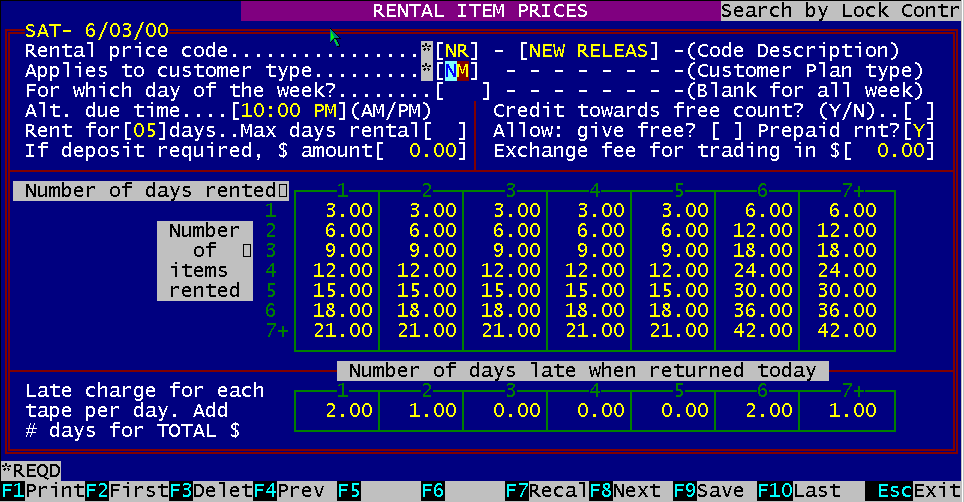
We want to have NonMembers (NM) rent all New Release (NR) at the normal rental price for 2 days
on Tueasday and have it due back by 6:00 PM. We designate this combination as follows:
This combination of "Rental Item Price/Customer Type" code is used to determine the amount of money to be paid for the rental tape when:
You can think of this type of pricing scheme as having a separate pricing schedule for all the different customer types applied to the different days of the week.
You define the pricing to charge for a particular tape, and you decide how much each type of customer
pays for that tape when they rent it and you decide which day of the week these pricing codes are to be in effect.
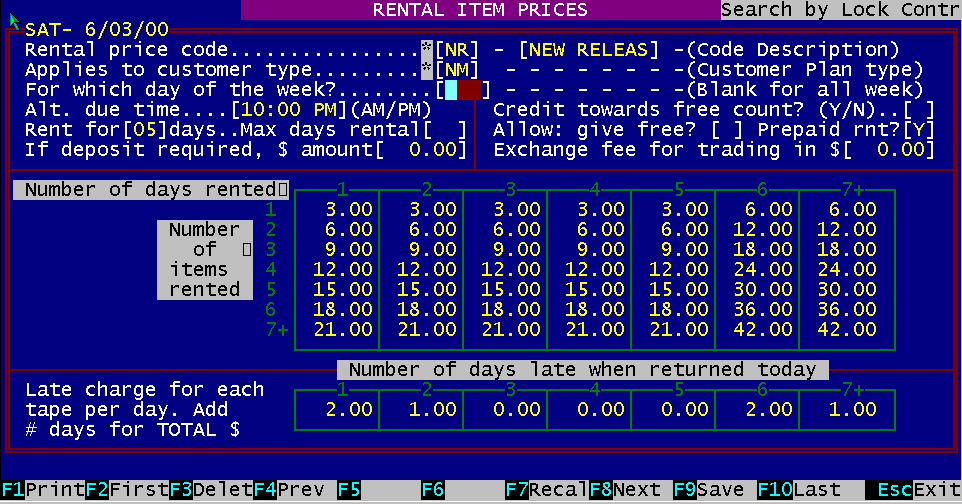
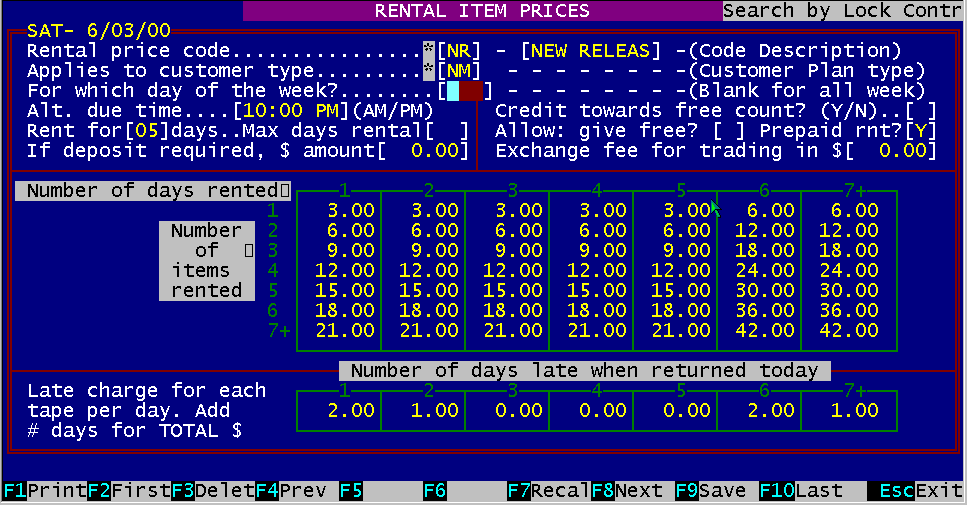
6.7.13 Using Rental Price Codes Figure 6.14 Rental Pricing example 4
Each price field is the TOTAL price the customer pays for the combination of number of tapes rented
and number of days rented for. Enter a dollar amount that you want to use for renting one item for one day. When you press Enter, the
system will automatically calculate the rest of the prices for up to seven days and seven rental items. This automatic calculation will be in effect only on a NEW RECORD condition. If you want to change any of the dollar figures, just move the cursor into the field you want to change
(using the four arrow keys on the right side of the keyboard), and overtype the dollar amount you want
in that field. The new amounts will be the prices shown on the POS transaction screen when the rental item is displayed for that particular customer type.
This ability gives you the flexibility of having the system compute prices for you as well as you overriding any computed price amount for a special sale.
As an example in Figure 6.14, on Tuesday you would like to have a special, where a Non-Member customer can rent three tapes for two days for $14.95, rather than the regular price of $18.00. All you would have to do is move to the intersection of the three tapes/two days price and overtype the $18.00 amount with the new $14.95 amount, press F9 to save the new price. When entering a new tape title into the "Enter/Modify Rental Items" screen page # 1 section, you can enter the "NR" code (New Release) in the
"Rental Price" field. Now the higher price will be automatically charged to the correct customer type when the tape is rented.
When the tape comes off the new release list, you may go back to the "Enter/Modify Rental Items", screen page # 1 section of BizPie, and change the
"Rental Price" field back to "RT" (Regular Tape), which is the normal price for rental tapes, as you have setup this "Rental Price" code for
"RT" type tapes in this section previously. Thus, if a customer type "LT' (Lifetime) customer rents a tape with this "Rental Item Price" code
"NR" (New Release) on Monday, this pricing structure will be in effect at the POS transaction screen.
As you can see, this method of pricing allows you to have an almost unlimited amount of "Rental Item Price"
combinations applied to different customer types, rental items and days of the week. |
|||||||||||||||||||||||||||||||||||||||||||||||||||||||||||||||||||||||||||||||||||||||
|
|||||||||||||||||||||||||||||||||||||||||||||||||||||||||||||||||||||||||||||||||||||||
|
|||||||||||||||||||||||||||||||||||||||||||||||||||||||||||||||||||||||||||||||||||||||
|
|||||||||||||||||||||||||||||||||||||||||||||||||||||||||||||||||||||||||||||||||||||||
| [BizPie] [About Us] [Sales Information] [Service] [What's New] [SiteMap] | |||||||||||||||||||||||||||||||||||||||||||||||||||||||||||||||||||||||||||||||||||||||
Please contact our Webmaster with questions or comments. |
|||||||||||||||||||||||||||||||||||||||||||||||||||||||||||||||||||||||||||||||||||||||