|
|
|
|
|
|
|
|
|
|
|
|||||||||||||||
 |
|||||||||||||||||||||||||
 |
|||||||||||||||||||||||||
|
|||||||||||||||||||||||||
BizPie has the capability of checking in rental items that were returned overnight in a dropslot or dropped off on the counter. The fastest possible checkin method is used to process these returned rental items. You don't have to presort the tapes in any manner. You do not have to arrange them by customer, or in number sequence, etc. You simply enter the rental item TD numbers in any sequence. There is a returned item log that can be printed as you are checking in rental items. When you have completed returning all the rental items, you have the option to print a receipt for each customer that returned items late. You can temporarily interrupt the entry of rental item ID numbers into the system, go on to other portions of the system to perform other tasks, such as rent a tape to a customer who walked in to the store, add new customers, etc. When you completed these tasks, you can resume from where you left off entering the rental item ID numbers to be checked in. Your task of entering these rental item ID numbers is greatly simplified by the use of a barcode reader. Just scan the rental item UPC barcode labels with the wand, and they will be added to the rental item list to be processed instantly. There in no possibility of entering the wrong number. To select the Bulk Rental Return, press function key F6. This will take you to the bulk rental return screen.
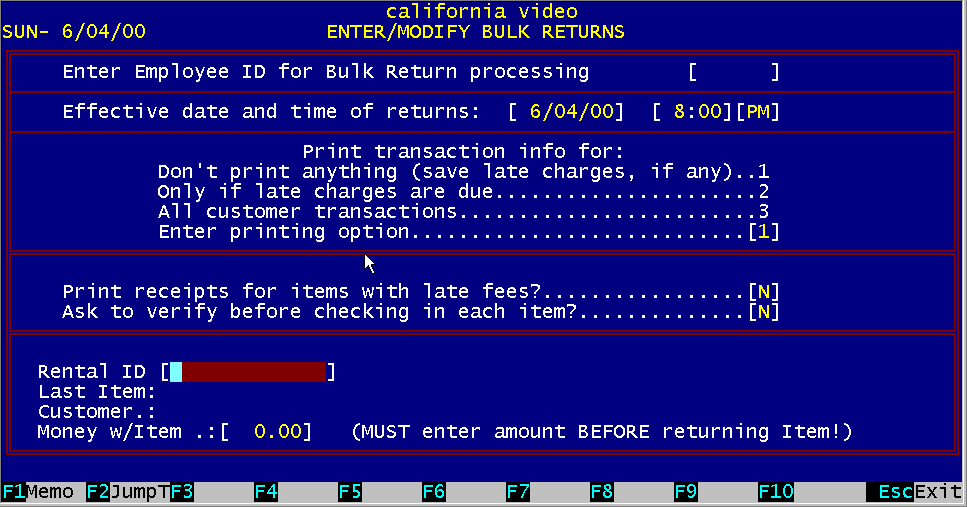
Figure 13. 1 Bulk Rental Returns
To start the "Bulk Rental Returns", select Main Menu option #6. The Enter/Modify Bulk Return screen will be displayed as above.
If you require a password to start Bulk Return, BizPie will ask for the Employee ID and a Password. You cannot continue without entering it if the Passwords and Access Level section is setup for it.
13.2.2 Effective Date and Tune You may change the effective date and time you want the system to think items are being returned. There may be times when you don't have a chance to process the drop box items until the system thinks they will be late. By changing the date or time, there will not be any late fees recorded in the customer's record. This function is also protected by the Password and Access Level feature of BizPie. If you don't want your employees to change the date and time, just setup an access level higher than the clerks.
You can print a line item log of every item checked in through the Bulk Return Process. This log is a duplicate that is recorded in the Transaction Detail and Transaction Summary files that are printed at the End of Day Processing section. The three options to print log lines are:
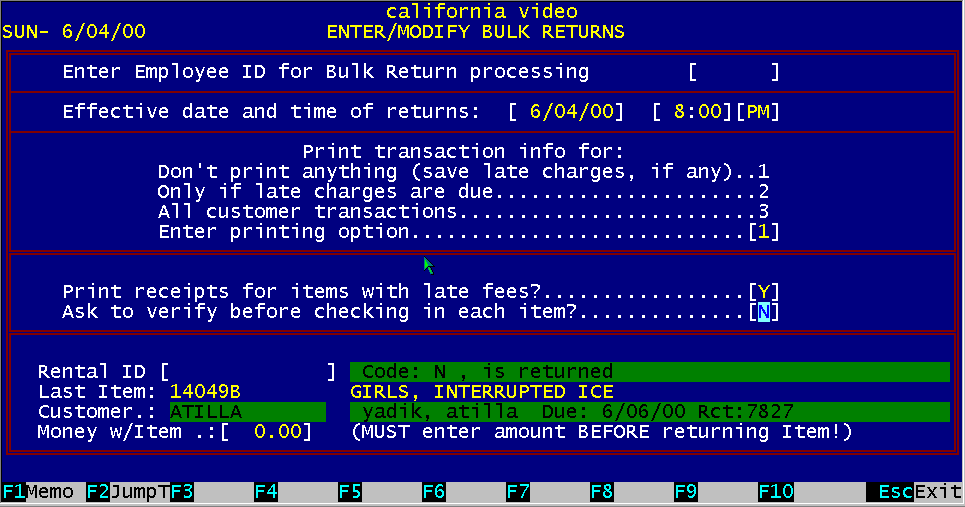
13.2.4 Print Receipts for Items Returned Late? You MUST enter a Y if you want to print the standard receipt form after all items are checked in. The receipt printed are the same ones you use for the POS section.
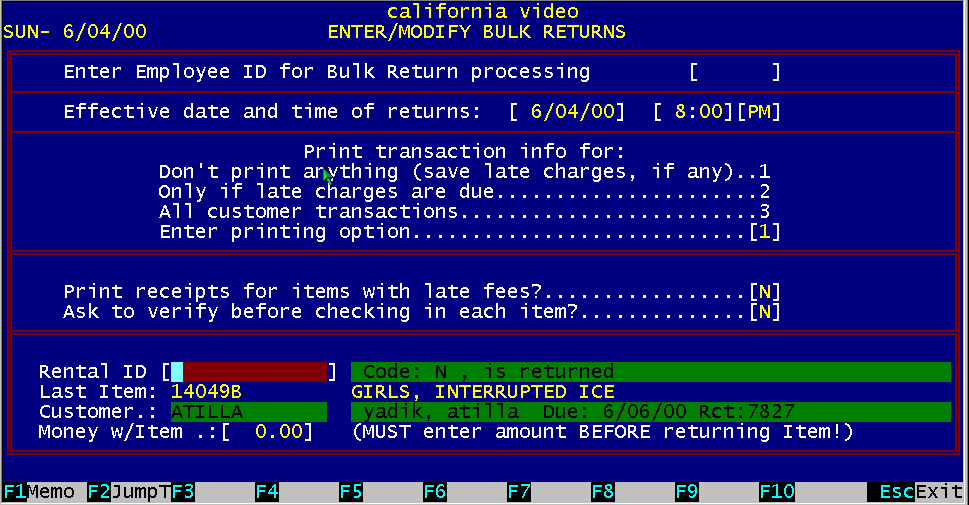
As the items are checked in, the customer who rented it will be displayed.
Figure 13. 2 Bulk Rental Returns
Enter the rental item number as it appears on the barcoded label. You can either type in the number using the keyboard or use a barcode reader if you have one. If the rental item has money with it, you may record it into the customer's account. Pressing the down arrow will allow you to record the dollar amount. You MUST enter the amount before scanning in the rental item ID. As you enter the rental item numbers, the system _ immediately checks the rental inventory for the item's status. If the item is out on rental, (status RNT), it will be immediately checked in with the following message displayed: Item 104 has been returned If the rental item has not been rented out (in stock), the following message is displayed: Item 41234 is NOT rented out If the item is late, the following message is displayed: This item is returned late!
Figure 13.3 Receipt Printing Options
The bulk return system will print a list of all items checked in based on the following options you have selected below. The list is in the form of a report, two lines per returned item. These lines are the customer ID and name, and the rental ID and name. You can select one of three options to print the log by.
This option will not print a log for customers. Late charges are still recorded in the appropriate customer files as a debit item.
13.3.2 Only if late charges are due This option will print a log line for customers only if they have a late charge due. If you do not select this option, the late charges are still recorded in the appropriate customer files as a debit item.
13.3.3 All Customer Transactions This option will print a log line for all customers whom have returned a rental item that you logged in.
13.3.4 Receipt Printing for Late Items
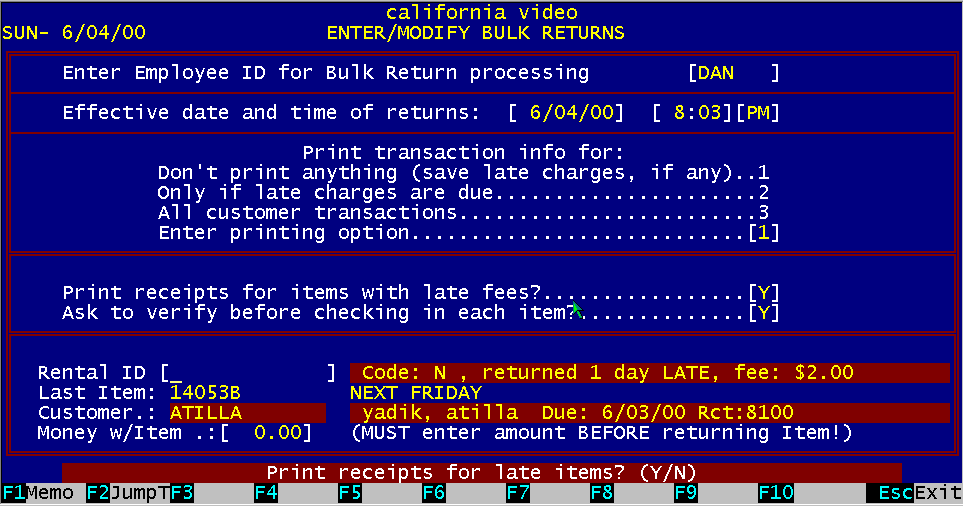
Figure 13.4 Receipt Printing Options
After all items are check in, you can press the ESC key. This tells BizPie that you are ready to print actual receipts for items returned late in the Bulk Return process, but not paid for. If you were printing the log records on plain paper, make sure you replace it with the receipt forms. These receipts are the normal, standard receipts as used in the POS section. If you chose to print receipts, make sure they are setup and aligned in the printer. |
|||||||||||||||||||||||||
|
|||||||||||||||||||||||||
|
|||||||||||||||||||||||||
|
|||||||||||||||||||||||||
| [BizPie] [About Us] [Sales Information] [Service] [What's New] [SiteMap] | |||||||||||||||||||||||||
Please contact our Webmaster with questions or comments. |
|||||||||||||||||||||||||